Inhaltsverzeichnis
Installation
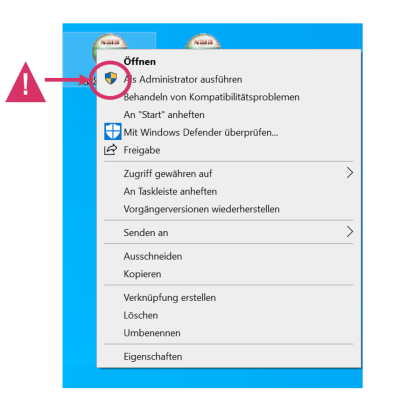
Start the package_setup.exe with administrative rights by opening the file via the context menu:
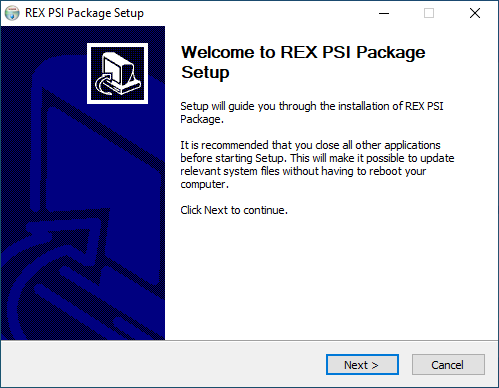
 Click on
 Next
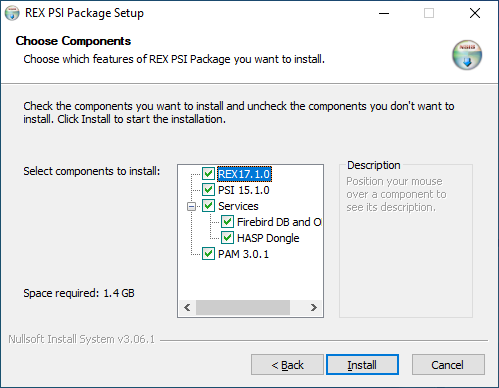
 Select the components to be installed:
REX Setup
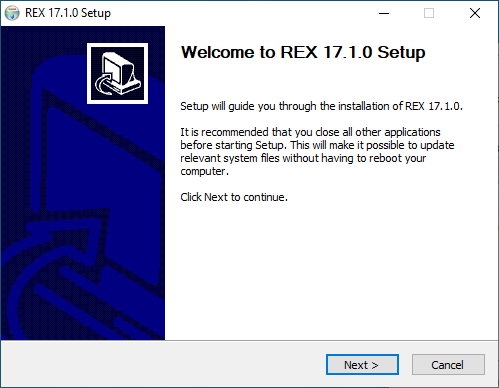
Click on Next
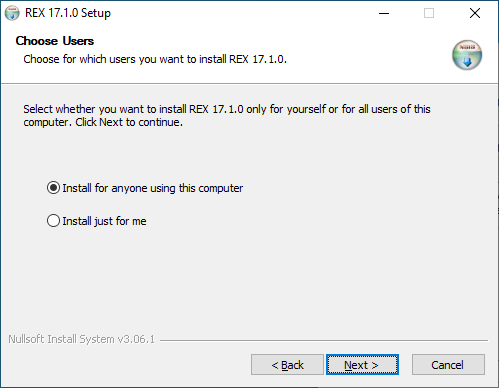
 Have REX installed for all users of the workstation.
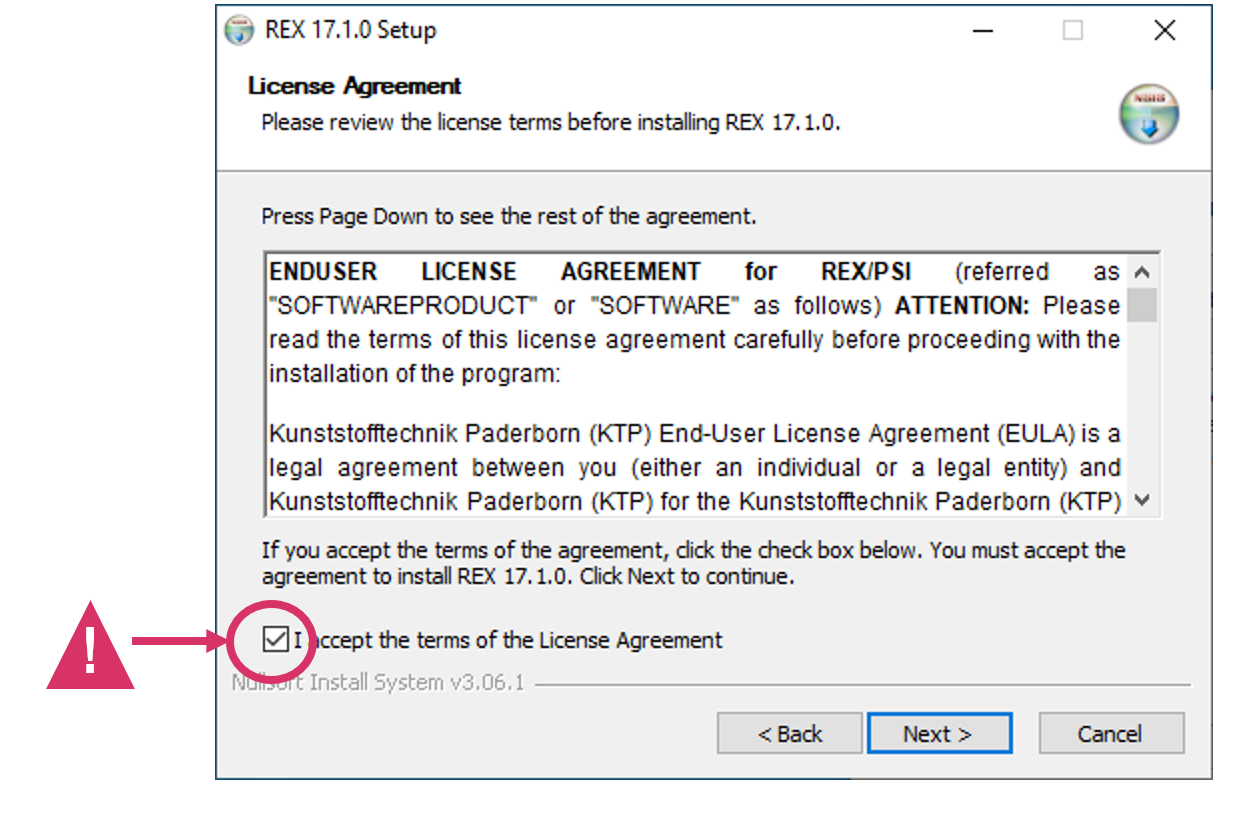
 Confirm the license terms.
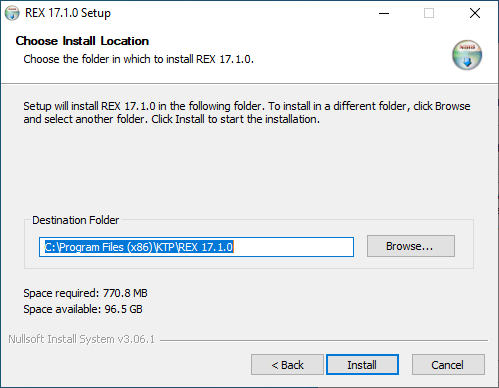
 Select and confirm a target path and click
 Install
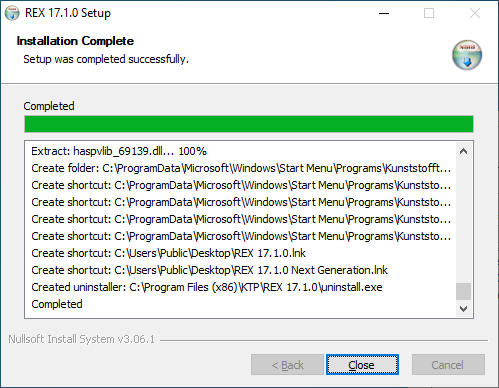
 After the installation has been completed, click on
 Close.
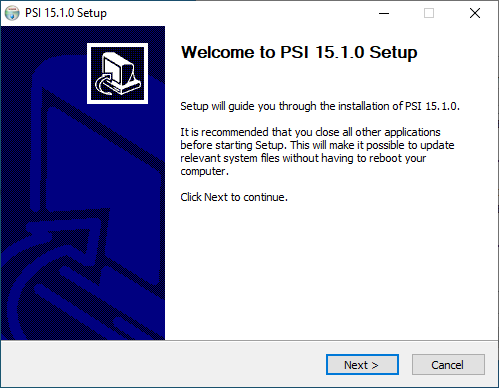
PSI Setup
Click on Next
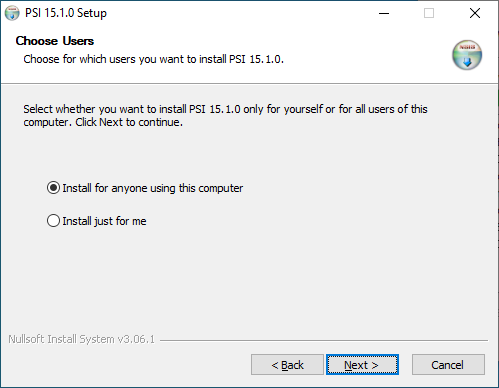
 Have PSI installed for all users of the workstation.
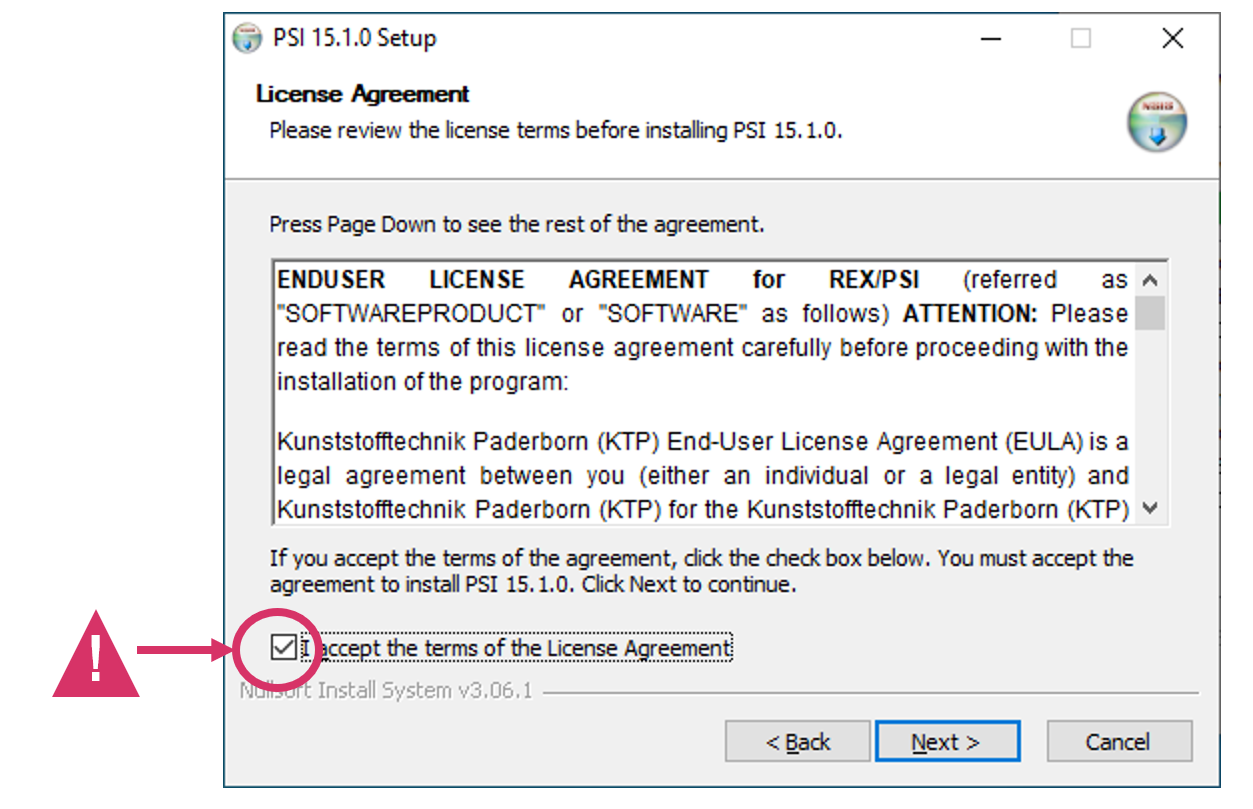
 Confirm the license terms.
 Select and confirm a target path and click
 Install
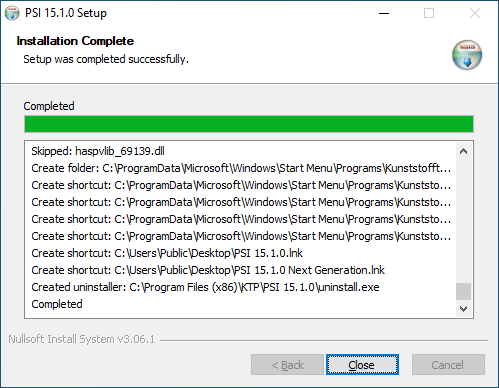
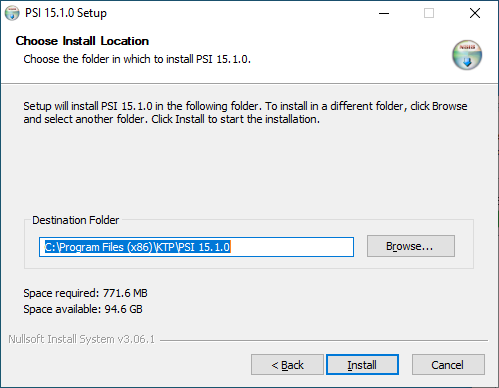 After the installation has been completed, click on
 Close.
Firebird Service Installation
Download the Firebird components
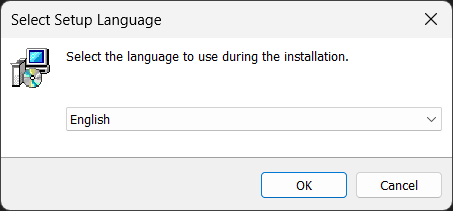
Select the setup language, e.g. English, and confirm with OK.
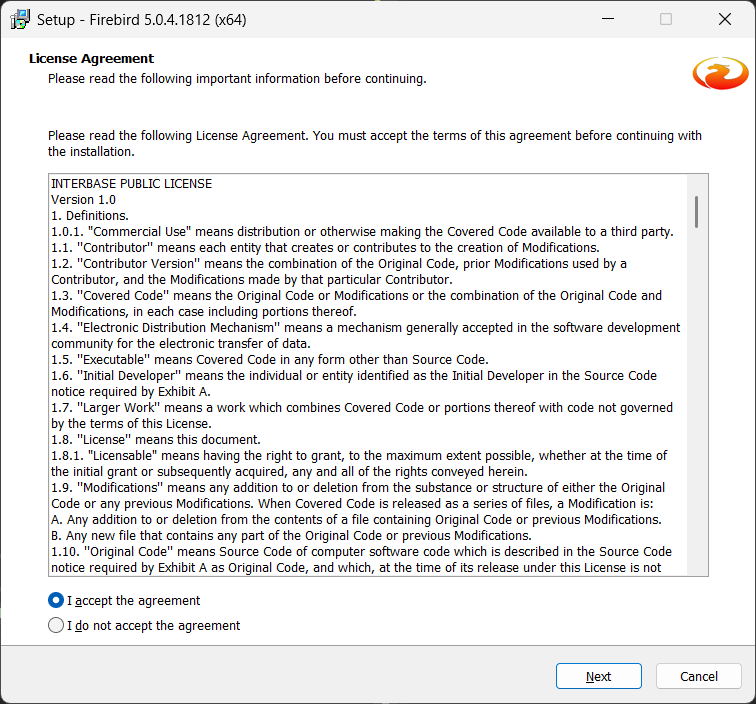
Read the license agreement and select I accept the agreement. Then click Next.
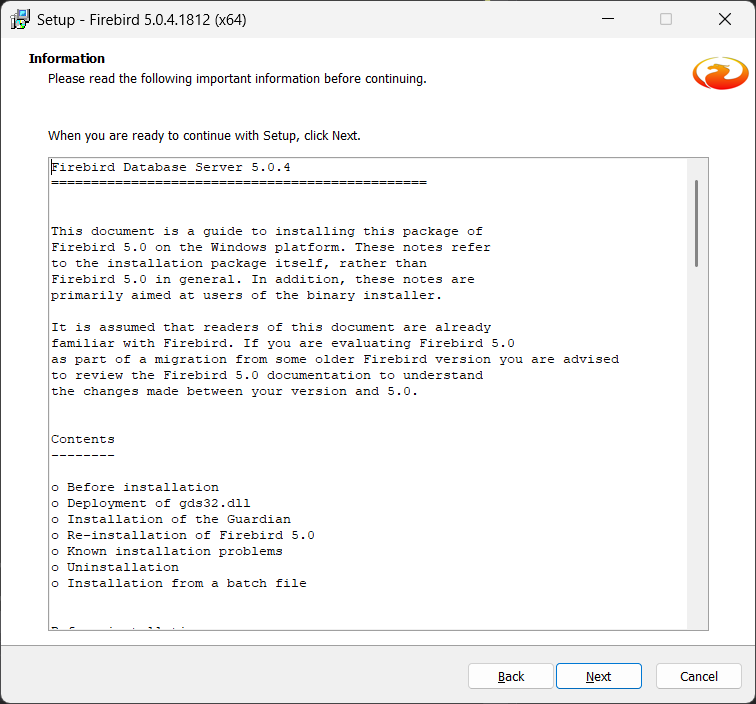
Read the installation notes and click Next to continue.
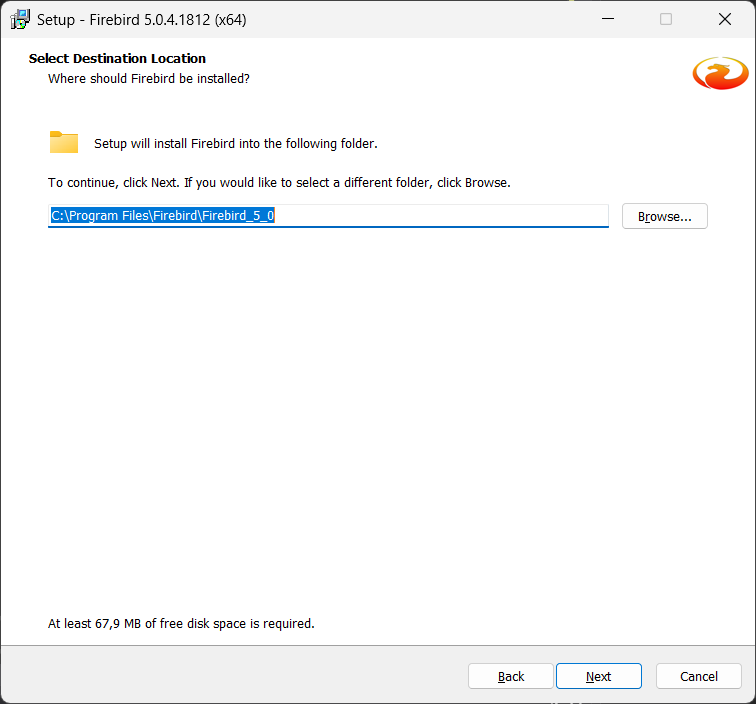
Select the destination folder. The default is:
C:\Program Files\Firebird\Firebird_5_0
Confirm with Next. Only change the folder if necessary using Browse….
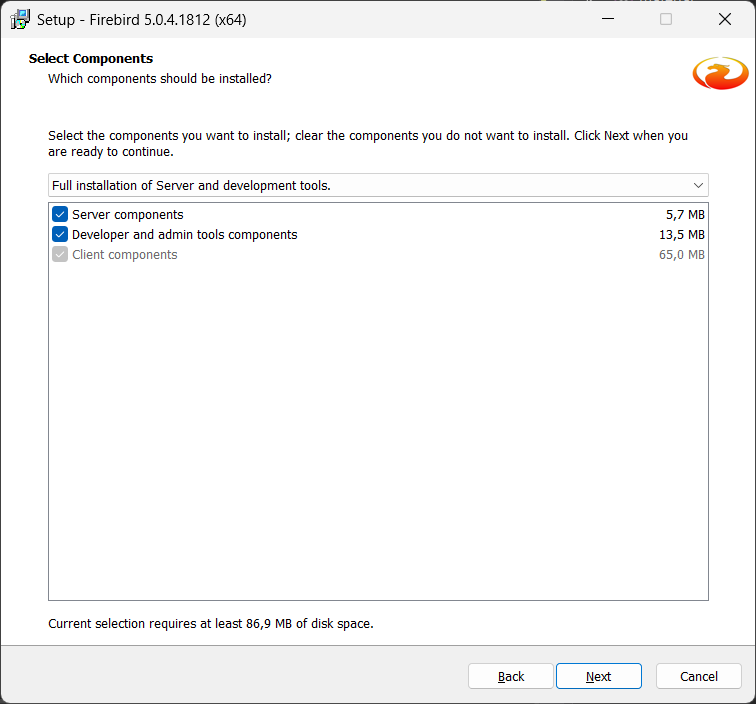
Under Select Components, leave the setup type set to:
Full installation of Server and development tools.
The following components remain selected:
* Server components * Developer and admin tools components * Client components
Then click Next.
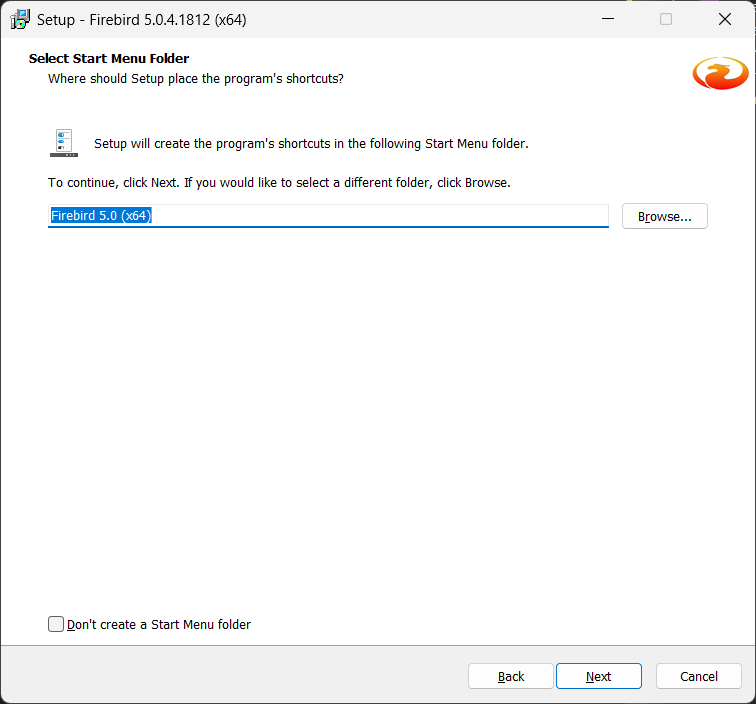
Specify the Start Menu folder. The default is:
Firebird 5.0 (x64)
Then click Next.
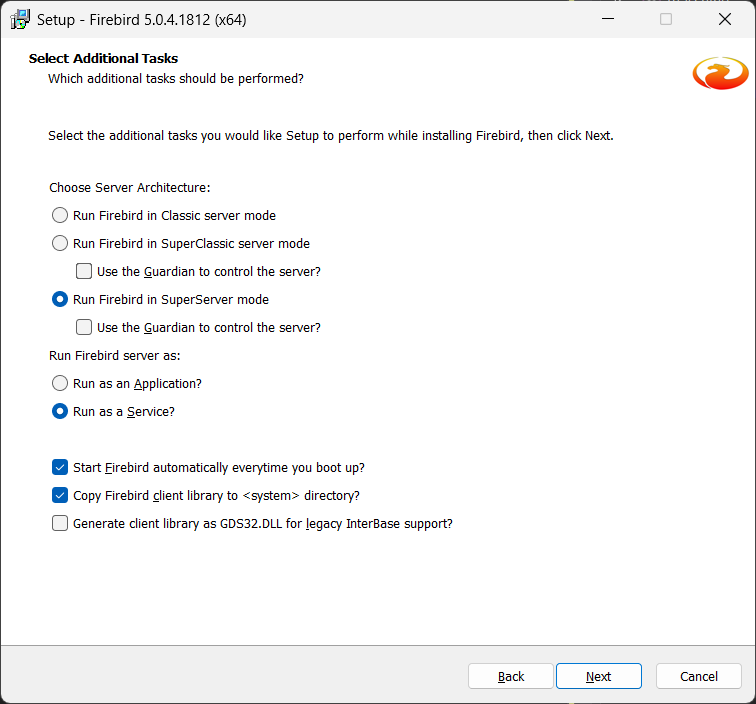
Under Select Additional Tasks, select the options as shown in the screenshot:
* Run Firebird in SuperServer mode * Run as a Service * Start Firebird automatically everytime you boot up? * Copy Firebird client library to <system> directory?
Do not enable:
* Use the Guardian to control the server? * Generate client library as GDS32.DLL for legacy InterBase support?
Then click Next.
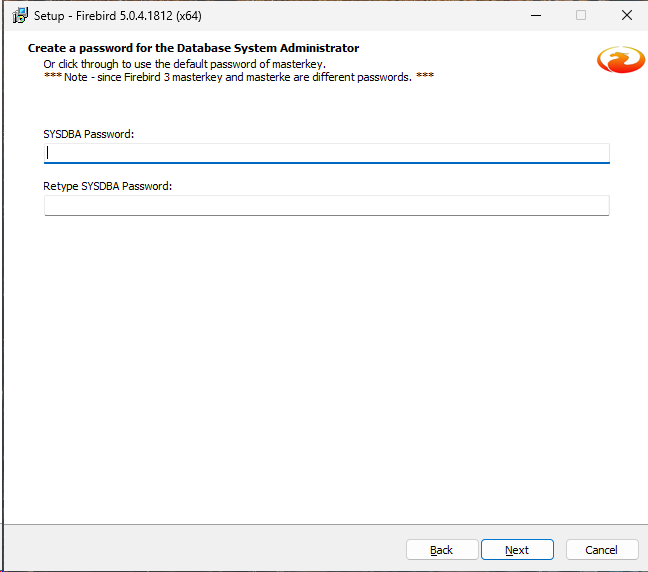
Next, enter a database administrator password, e.g. masterkey. Then click Next.
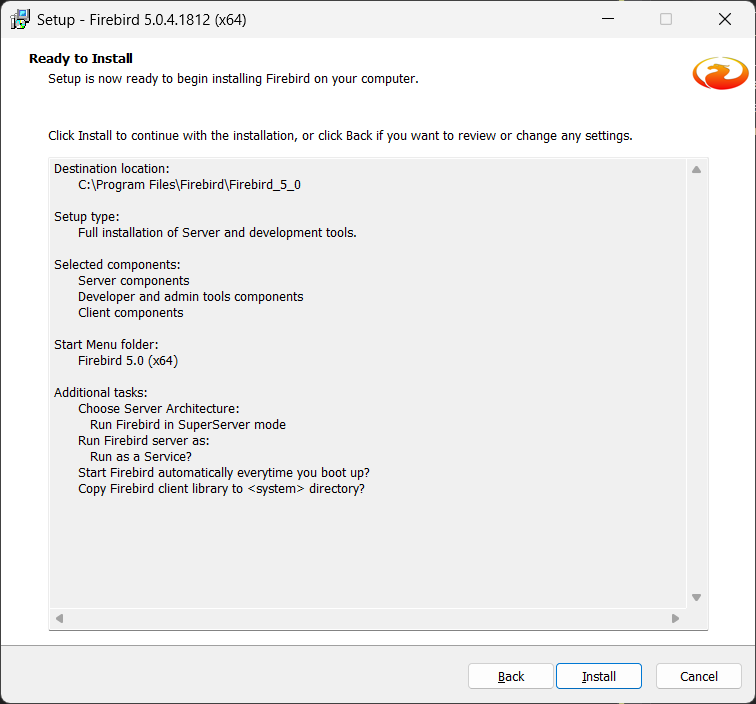
Check the summary. If all settings are correct, start the installation by clicking Install.
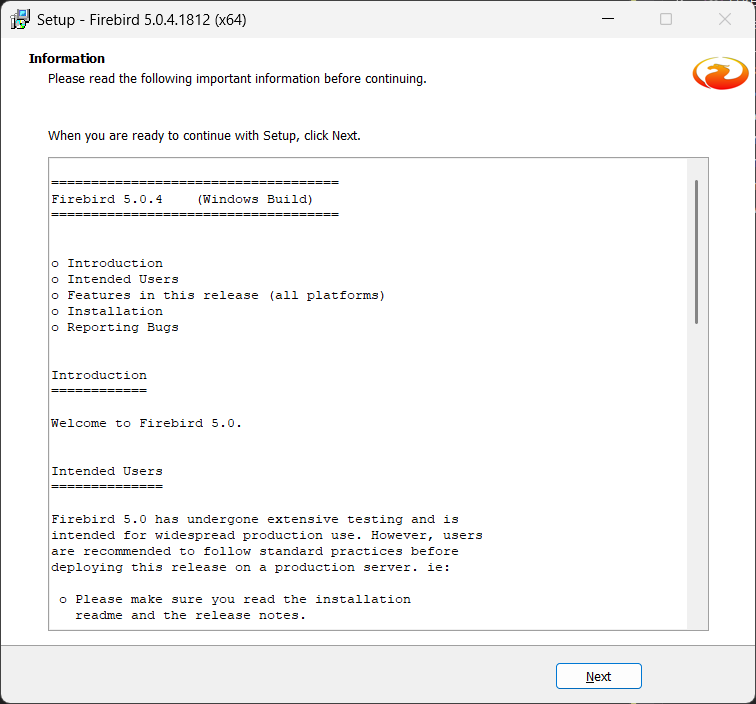
After the installation, an information/readme window may be displayed. Click Next.
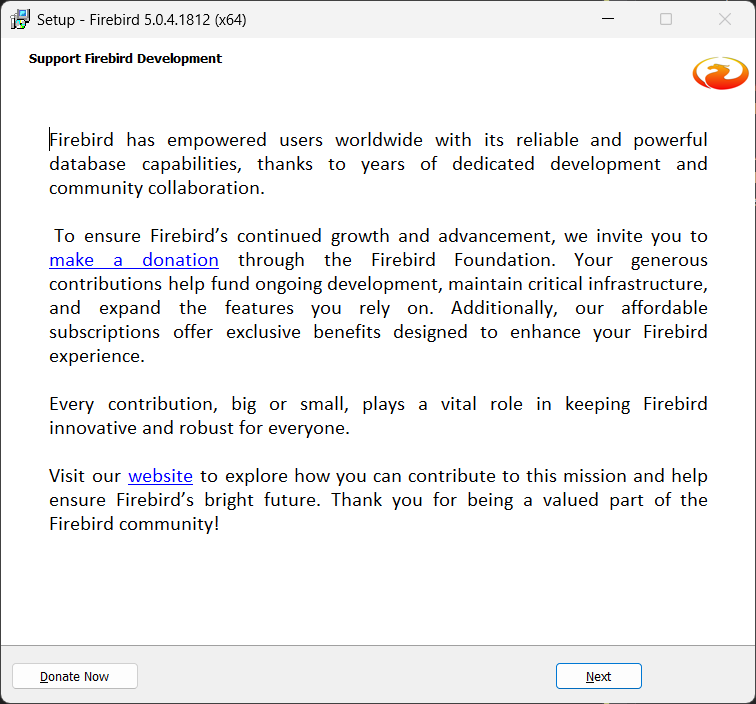
In the Support Firebird Development window, click Next.
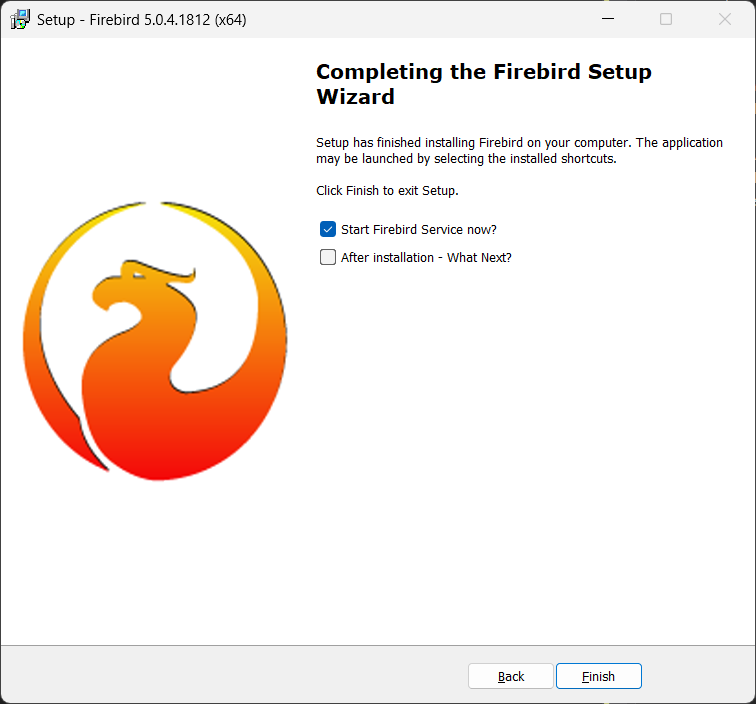
In the final window:
* Leave Start Firebird Service now? enabled * Disable After installation - What Next?
Finish the wizard by clicking Finish.
Firebird ODBC Service
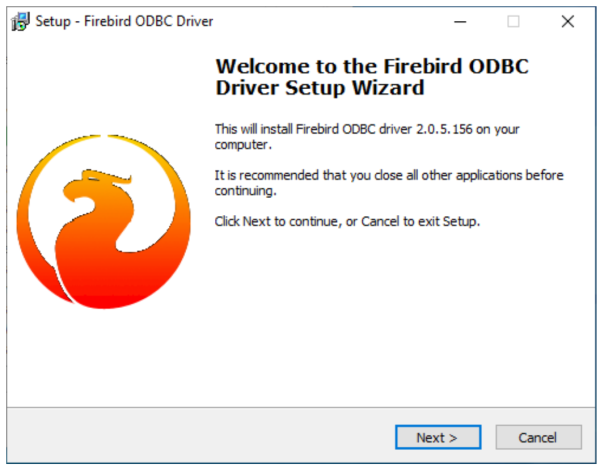
Start the Firebird ODBC Driver (2.0.5.156) setup and click “Next” in the welcome window.
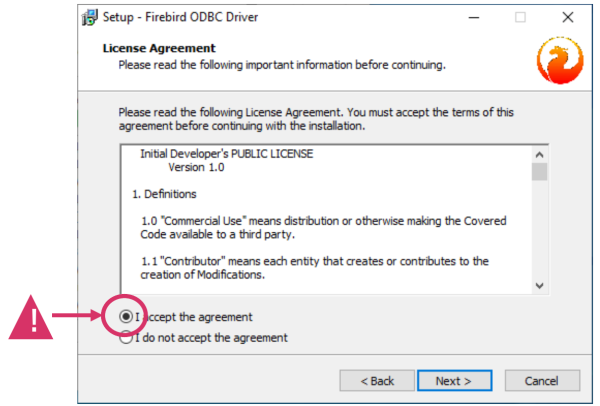
Accept the license terms (“I accept the agreement”) and click “Next”.
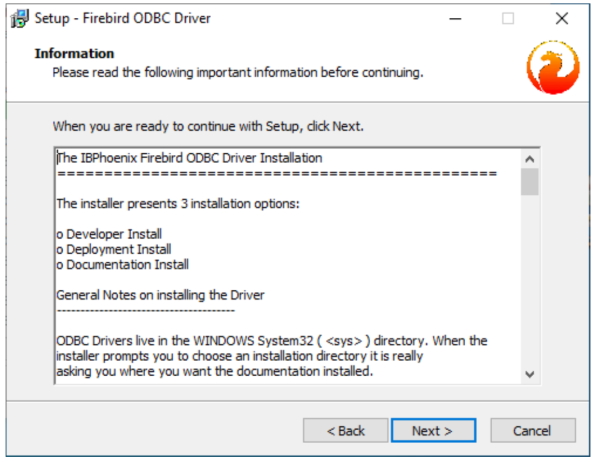
Read the installation information (notes about installation options) and click “Next”.
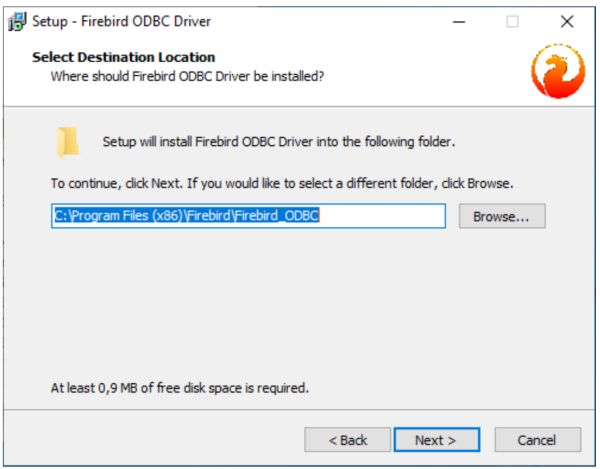
Select the installation folder. The default is: C:\Program Files (x86)\Firebird\Firebird_ODBC Confirm with “Next”.
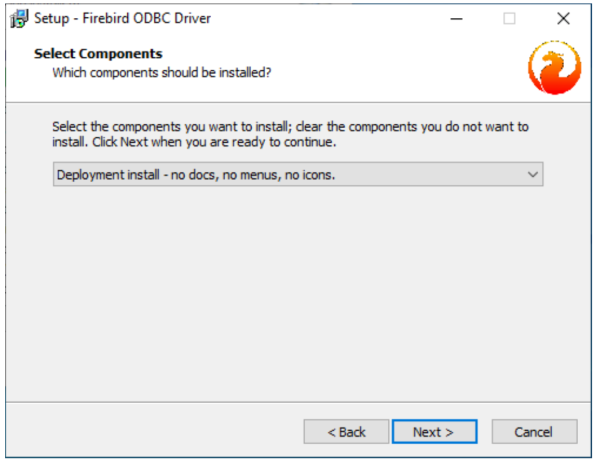
In “Select Components”, choose the setup type: “Deployment install - no docs, no menus, no icons.” Then click “Next”.
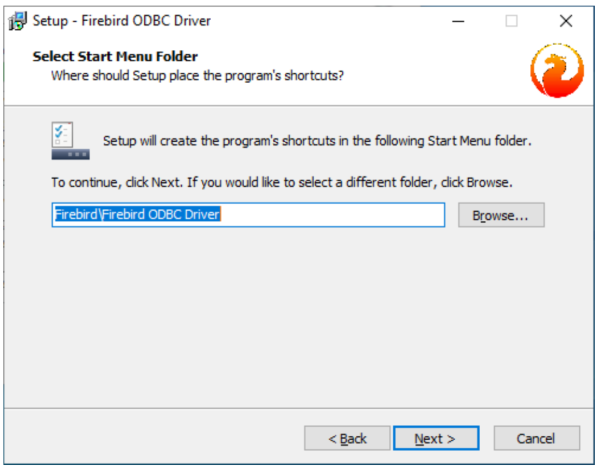
Confirm the Start Menu folder (default e.g. Firebird\Firebird ODBC Driver) and click “Next”.
In the “Ready to Install” window, start the installation by clicking “Install”.
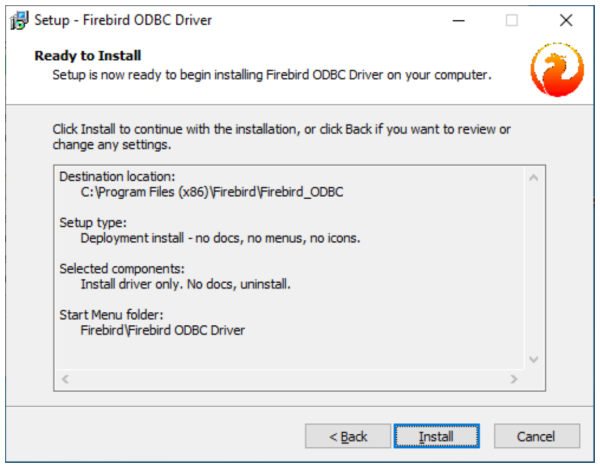
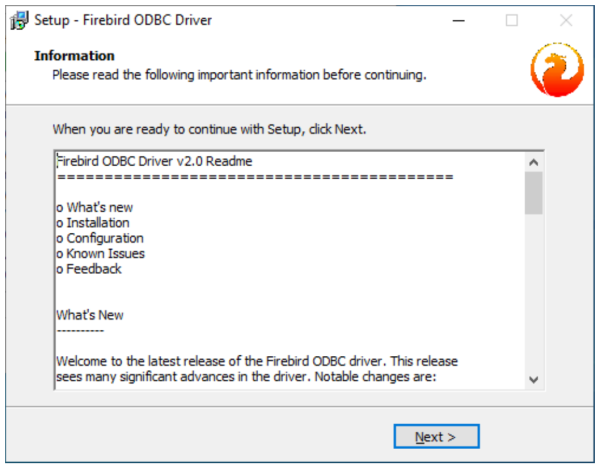
After installation, a readme/notes window may appear. Click “Next” to continue.
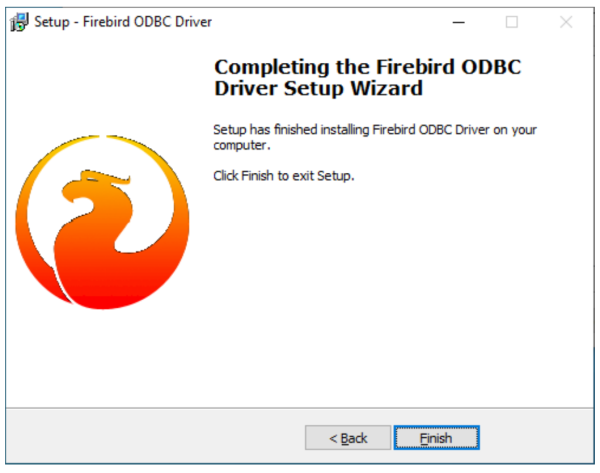
Finish the ODBC setup by clicking “Finish”.
Thales Sentinel Runtime driver
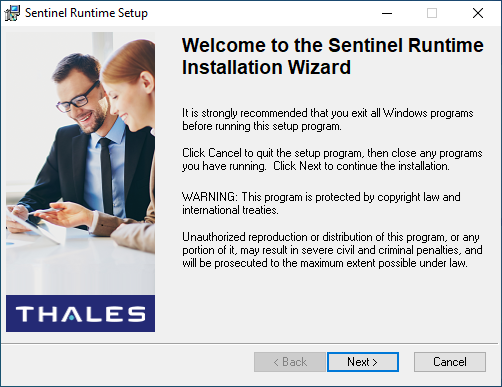 Click on
 Next.
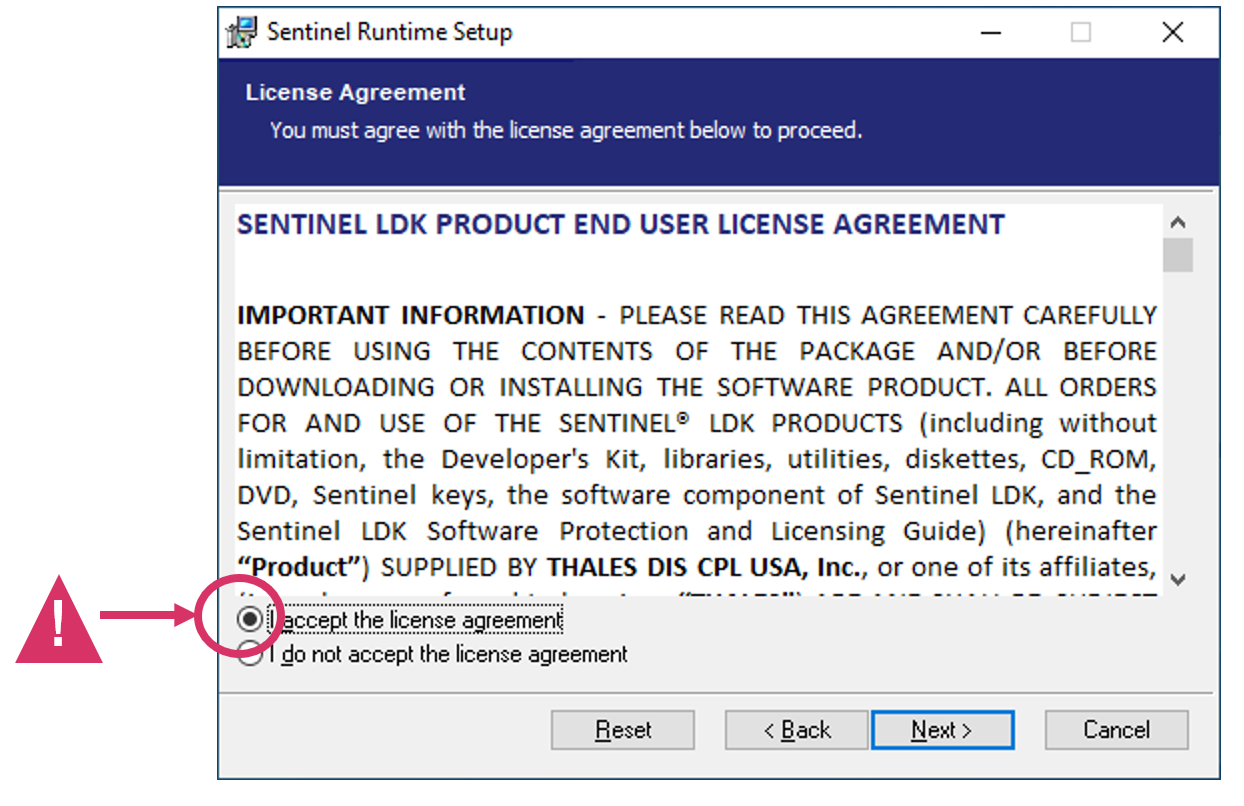 Accept the license agreement and click on
 Next.
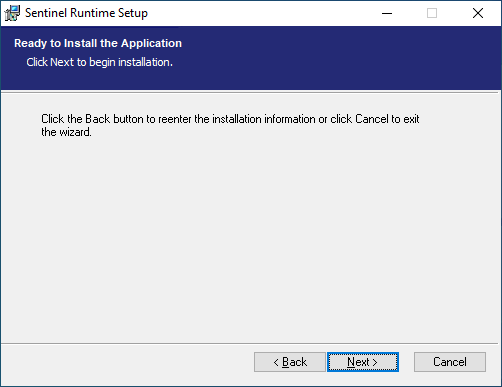 Click on
 Next.
PAM Setup
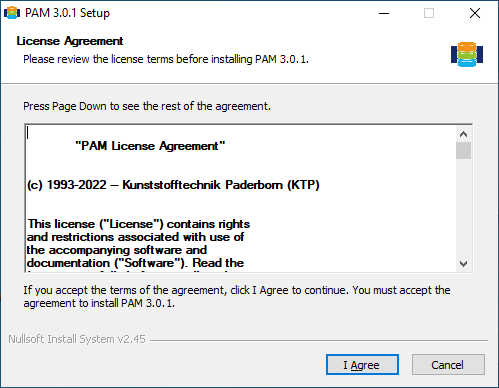
 Accept the license agreement by clicking on
 I Agree.
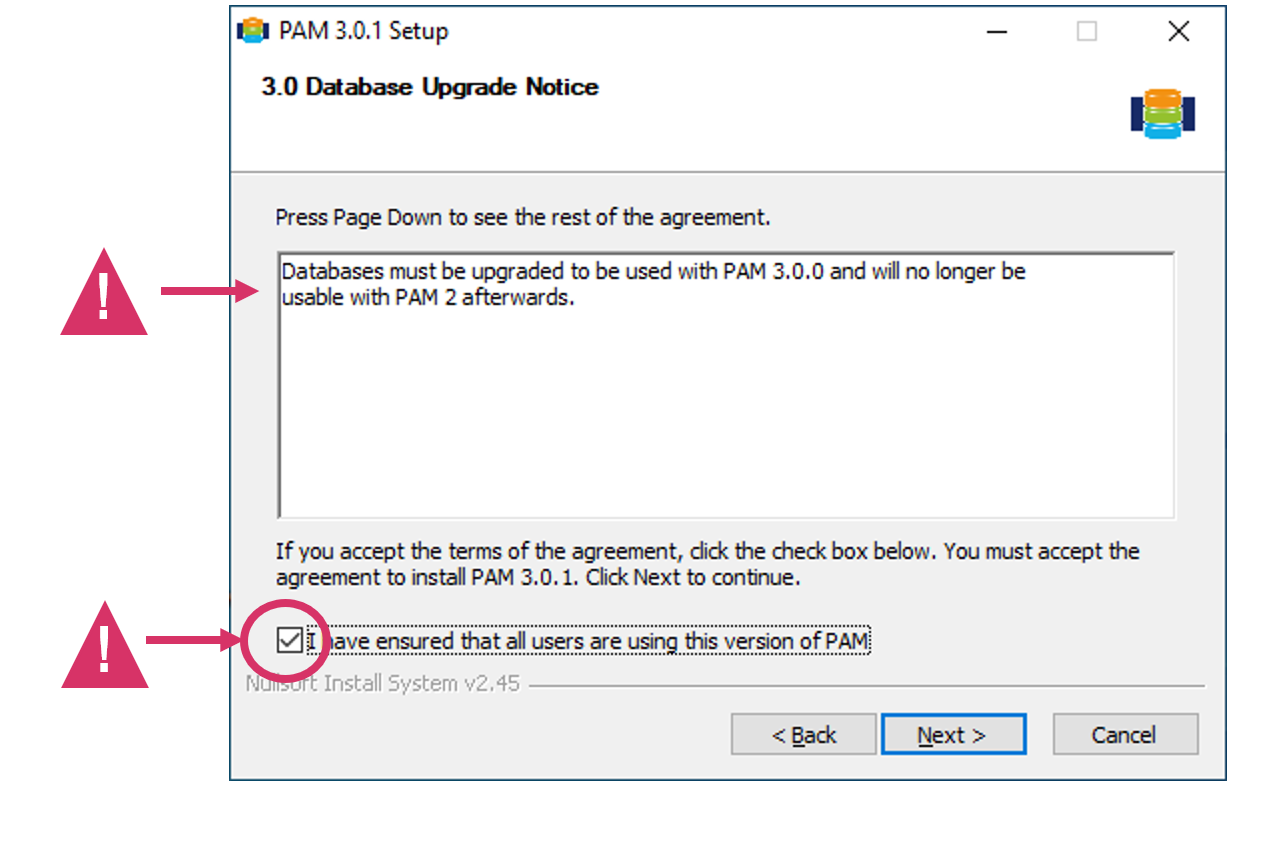
 From PAM version 3.0, the databases must be transferred to a new structure. Subsequently, migrated network databases can only be used with PAM versions 3.0 and higher. Please ensure that all users of a network database use this version.
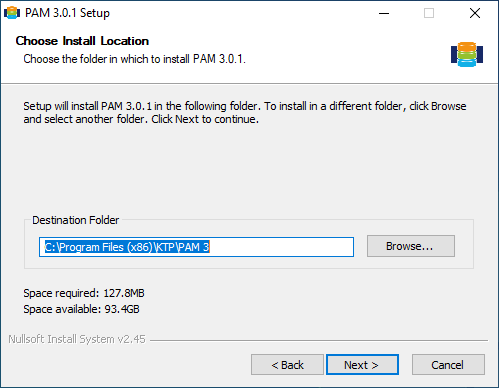
 Select the installation path and confirm with
 Next
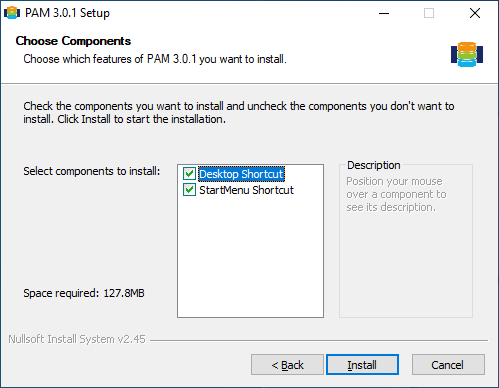
 Select whether you want to use desktop or start menu shortcuts and then click on
 Install.
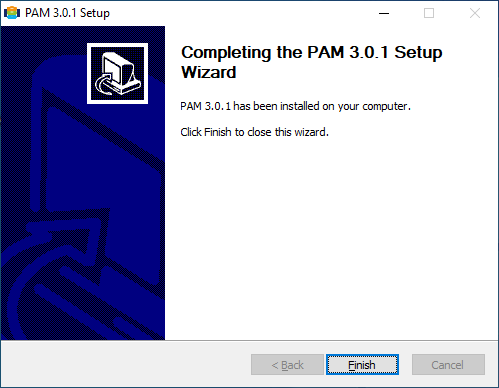
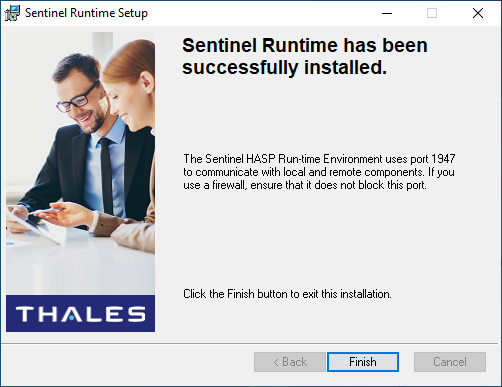
 Finish the installation by clicking on
 Finish.