Dies ist eine alte Version des Dokuments!
Printing

Printing
Printing can be done via the Toolbar,

Project→Print or via Ctrl + P. A menu opens with the Print settings.
PDF files can also be created using a ‘pdf printer’.
Page settings
The paper, portrait or landscape format and distances to the edges can be selected here
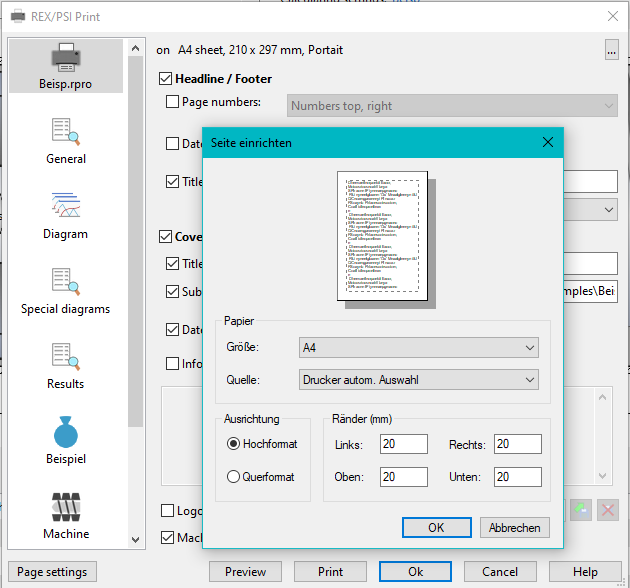
- Preview: opens a print preview
- Print: Starts printing
- OK: Closes the menu, changed settings are saved
- Cancel: Closes the menu, changed settings are not saved
- Help: opens these instructions
Settings
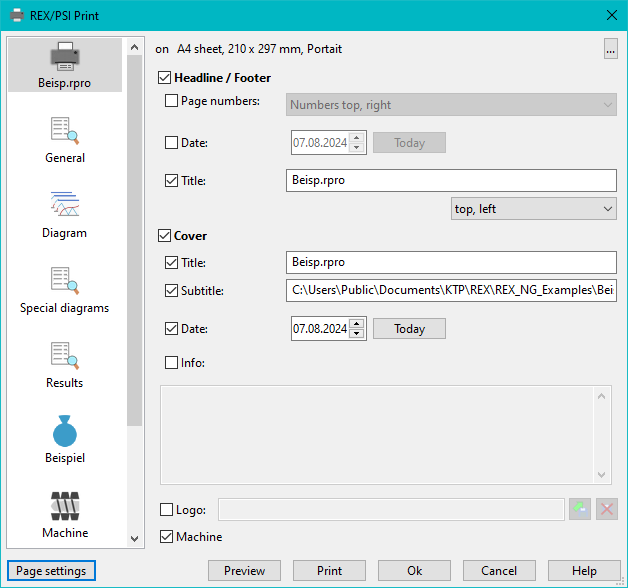
The header, footer and cover page can be configured in the top tab (here „Dzs.ppro“).
All subsequent tabs correspond to a new sheet in the printing process and can be customized or deactivated for printing.
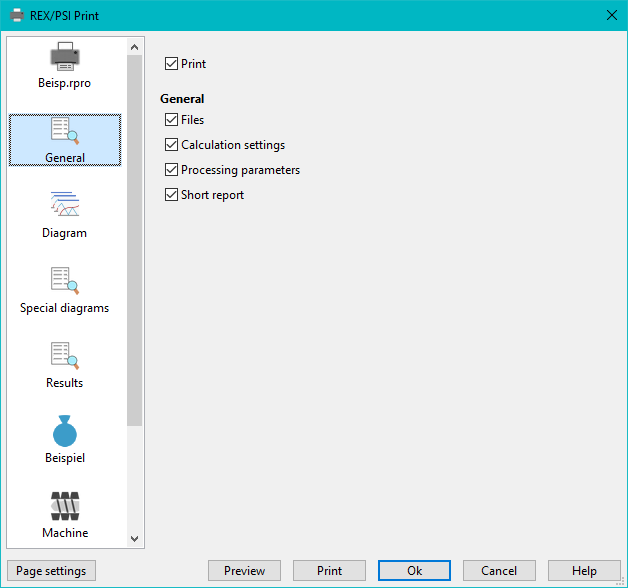
General
General information on the process and a short report on the results can be printed out here.
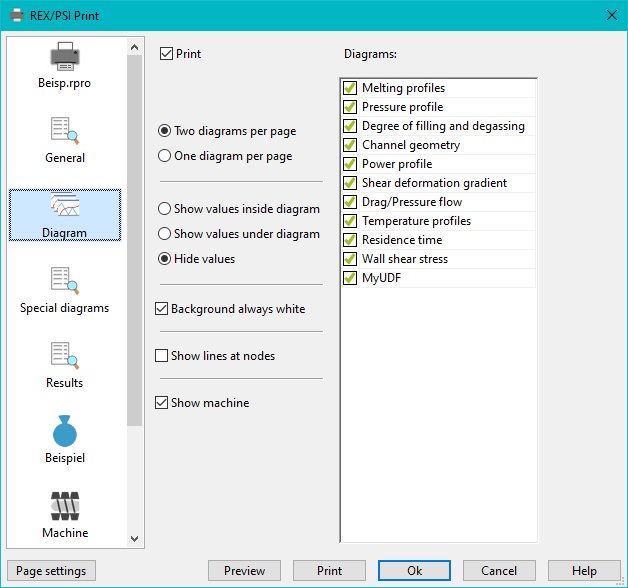
Diagram
All diagrams that can be displayed during the process can be selected and configured here.
Other diagrams
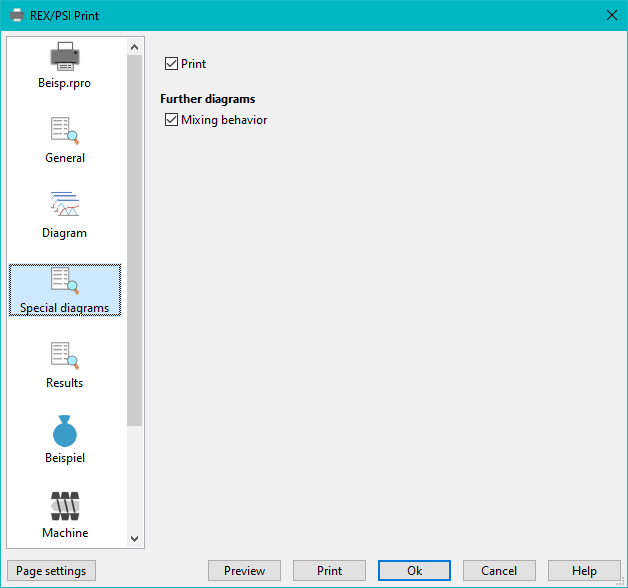
Diagrams that are not curves can be selected here. In PSI, comparison diagrams for front/rear screw position can also be selected here.
Results
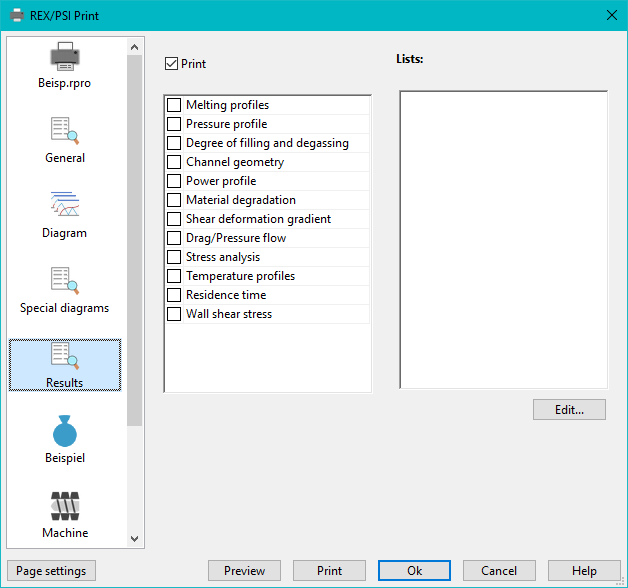
Lists of results for the diagrams and user-configured result lists can be selected and printed here.
Material
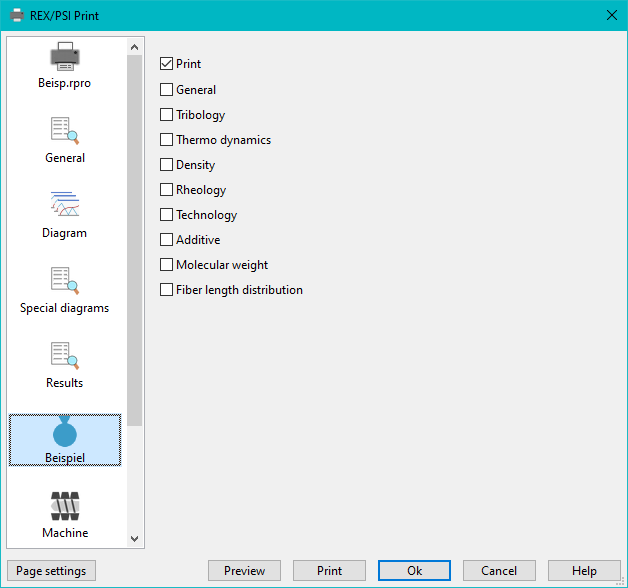
Information of the material can be selected here.
Machine
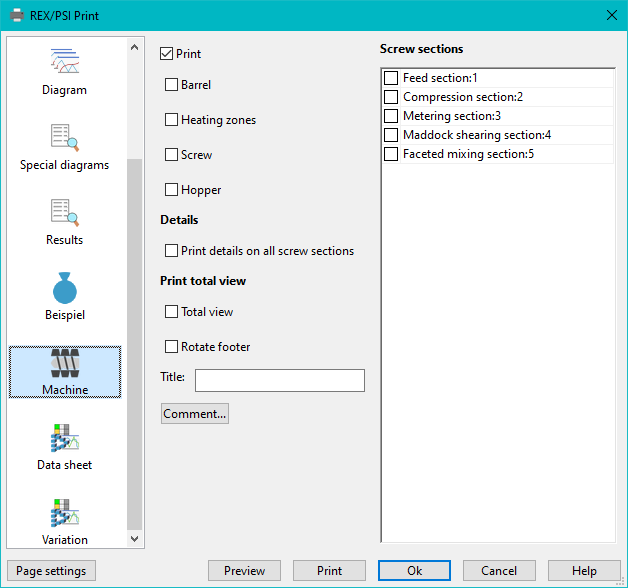
Here you can select partial areas of the machine, a full-page overall view and details of individual screw zones.
Measuring sheet
Measurement sheets can be selected for printing here.
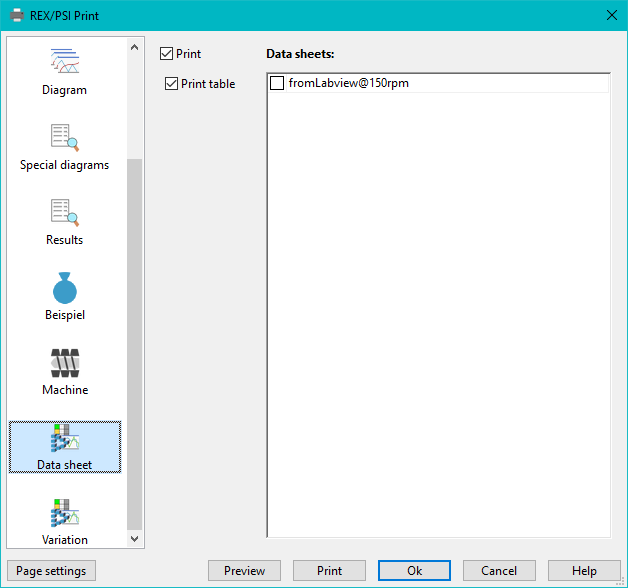
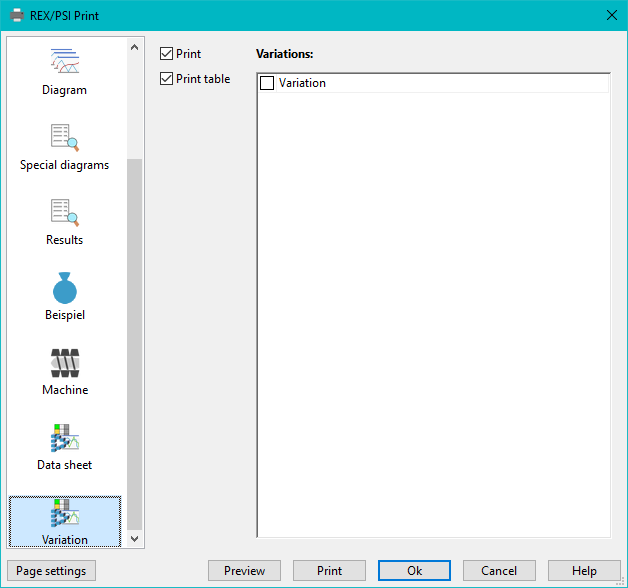
Variation
Variations for printing can be selected here.
Printing diagrams
Another way to print diagrams is to right-click on the diagram and select Print from the menu that appears. Only the diagram will be printed.
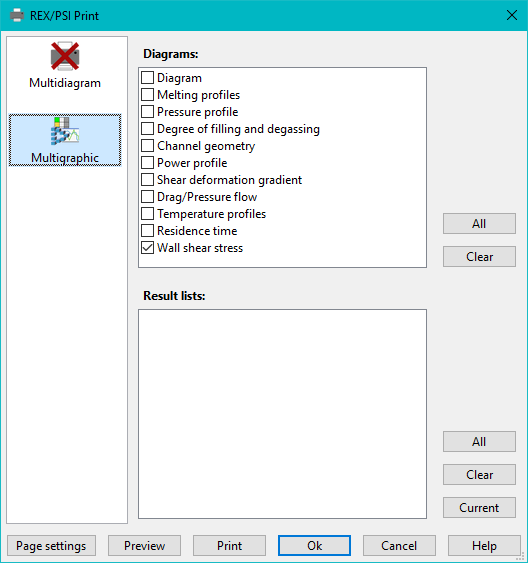
Multigraphic
Here you can print currently displayed diagrams and result lists from the multigraph.
Fiber length distribution
The sub-areas of the fiber length distribution can be selected for printing here. How length distribution works: Up to 4 diagrams are printed per page. The entries „from“ and „to“ are the positions of the first and last diagram, the others are equally spaced in between.