Dies ist eine alte Version des Dokuments!
Handling front/rear calculation position (PSI)
A key innovation in PSI Next Generation compared to previous versions is the way in which the calculation of the screw position (front and rear) is performed. This change enhances the flexibility of process simulation, particularly when calculating processes with different screw positions. The following section details the procedure and new functionalities.
Defining the Screw Position in the Calculation Settings
In PSI Next Generation, processes are only calculated in the entered calculation position by default. If the ‘Front’ or ‘Rear’ calculation positions are also to be calculated, the corresponding checkboxes must be selected. You can then select Compare screw position in the graphics menu to access the various results.
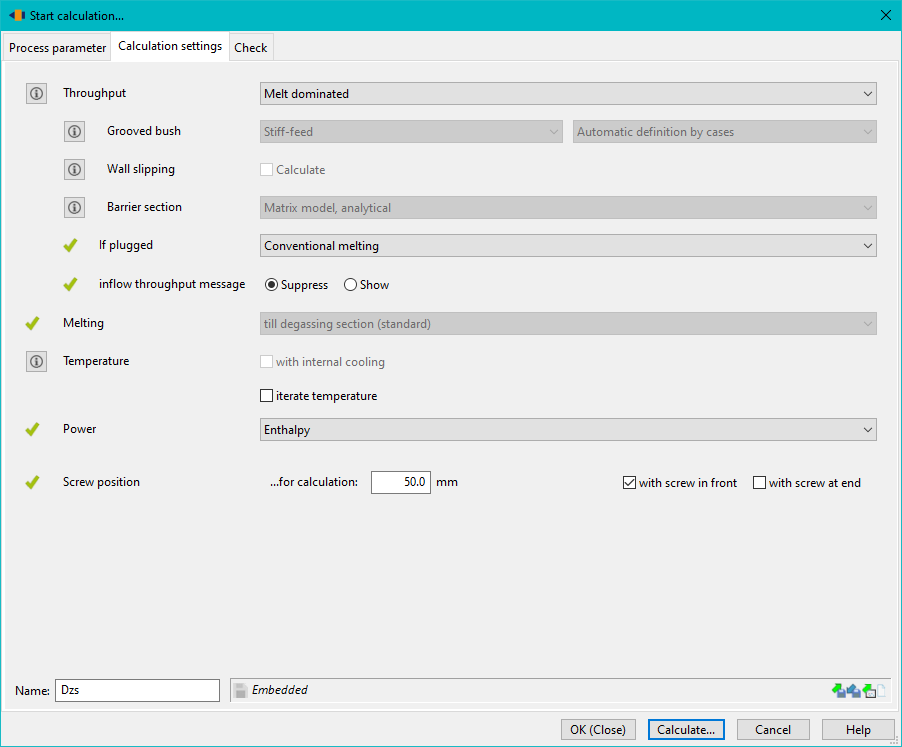
Alternatively, the variation manager can also be used to calculate and compare several different screw positions. To do this, add a new control variable under ‘’Calculation settings‘’ > Screw position.
Batch Mode Calculation
Once the screw position is defined, the process can be started. The software runs the calculations in batch mode, meaning that two processes are calculated consecutively:
- First step: Calculation with the specified screw position
- Second step: Calculation with the front screw position (if selected)
- Third step: Calculation with the screw position at the rear (if selected)
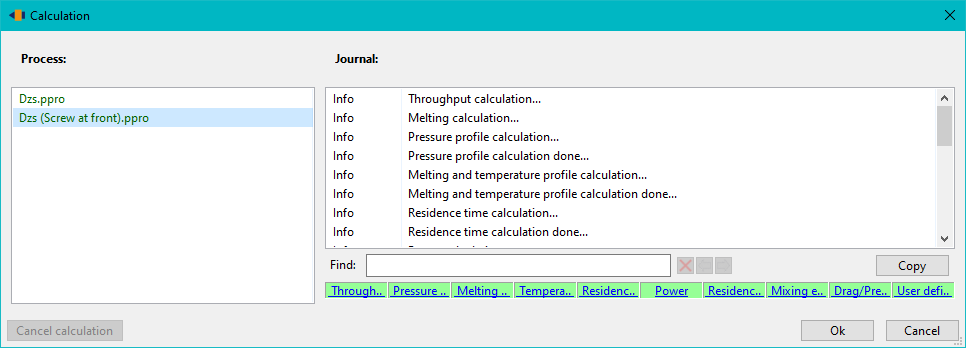
This decoupled multi-stage calculation process simulates the effects of the different screw positions in the process and generates the corresponding results. This allows the user to carry out a detailed analysis of the process behaviour under different screw positions.
Displaying and Comparing Results
Once the calculations for both screw positions are completed, the results are available for analysis. There are several ways to view the results for the different screw positions:
- ** Toolbar button: You can access the calculated results directly via the Show the results for the different screw positions button in the toolbar. * **Menu option: Alternatively, you can select Graphic → Compare screw position from the menu to visualise the results.
Multigraphics and Result Comparison
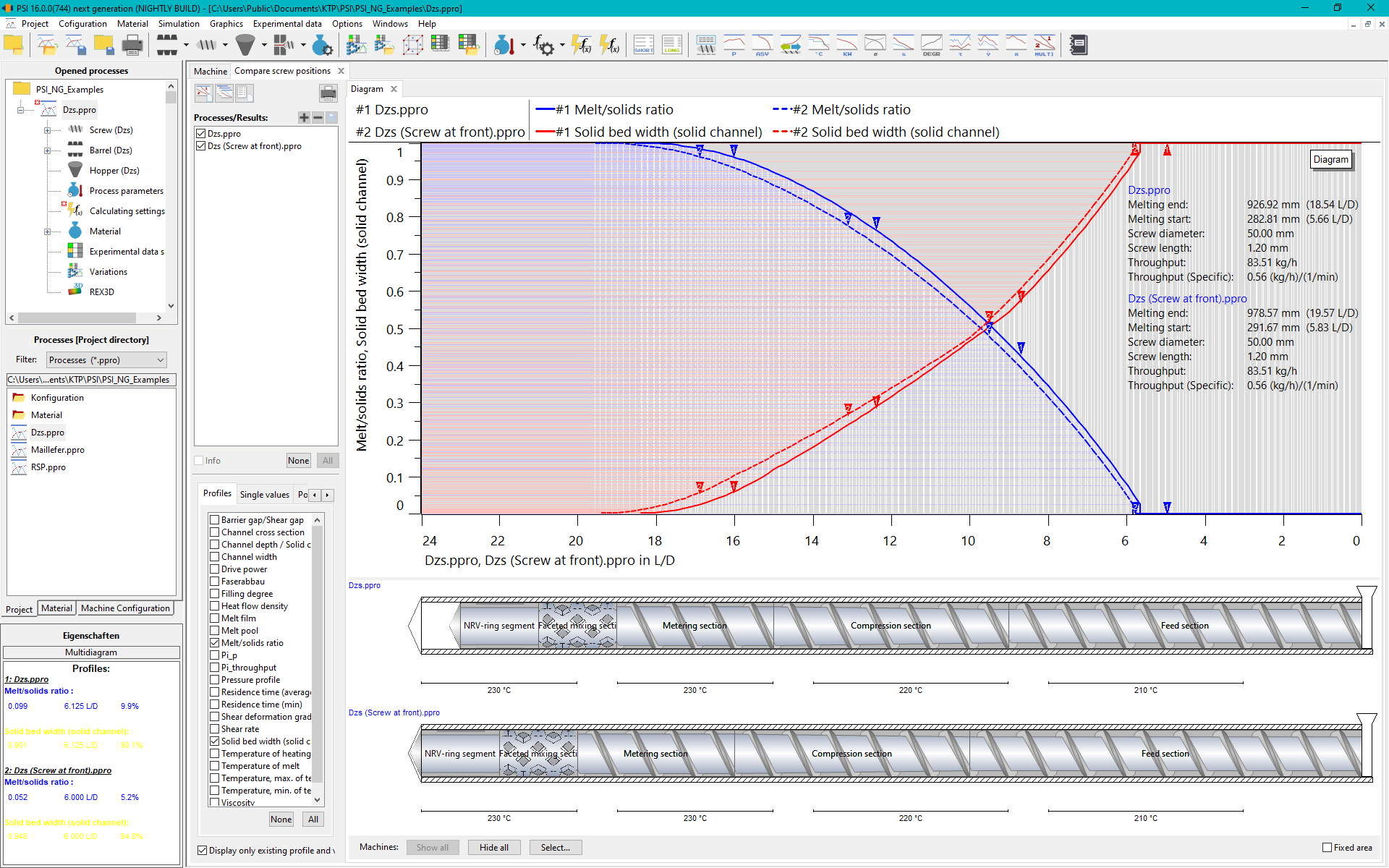
After selecting the results, a multigraphic is opened, which displays both calculations (screw front and screw rear) side by side. This graphical representation provides a direct comparison of the process behavior for the different screw positions. In the multi-graph, you can compare both calculation results to analyze the impact of the different screw positions on the process.
For a comprehensive analysis of the simulation results, you can also use the quick-access button Open all standard diagrams. This allows you to open all relevant diagrams simultaneously, providing a quick and efficient comparison of all calculated results.
Summary
The visualization and simulation of screw positions in PSI Next Generation have been fundamentally improved to enable detailed and flexible simulation of processes with different screw positions. By adjusting the calculation settings, utilizing the automated batch mode, and employing the clear multi-graph comparison of results, the analysis of process impacts becomes more efficient and accurate. These innovations ensure that users can conduct an in-depth evaluation of their processes under various conditions, which is particularly beneficial in the field of plastics engineering.