Dies ist eine alte Version des Dokuments!
REX3D Installation
Remove Legacy Extrud3D 3rd Party Setup
If installed, please uninstall the following applications from the system:
- Miniconda 3
- Visual C libraries
- Intel Fortran Libraries
- GTK
- Microsoft MPI
- Paraview 5.9.1
- gmsh 4.10.5
- Free CAD 0.20
Extrud3D 3rd Party Setup
The setup must be started with administrative privileges.
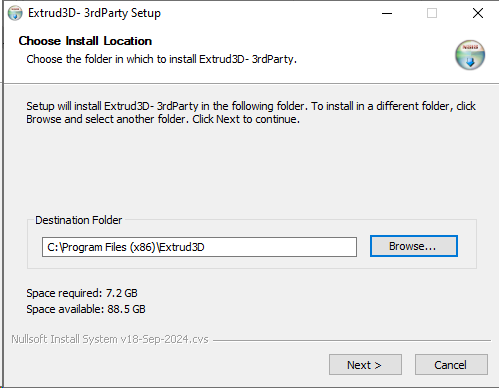
Select Installation Directory
After starting the setup, specify the installation directory for the Extrud3D 3rd-party components.
By default, the following directory is used:
C:\Program Files (x86)\Extrud3D
If required, you can select a different installation directory using Browse….
Then click Next >.
Select Components
In the next step, select the 3rd-party components to be installed.
To use Extrud3D with OpenFOAM, the following component must be enabled:
KTP OpenFOAM Dependencies for Extrud3D
This component includes:
- Podman
- Podman-remote
- Container Image
The additionally listed IANUS FeatFlow Dependencies for Extrud3D are marked as deprecated and are not required for an OpenFOAM installation unless you intend to run simulations with FeatFlow.
The Podman component is only required if simulations are to be executed locally on the workstation using a virtual machine. If a simulation server is used, installing Podman-remote is sufficient.
If only the OpenFOAM components are required, the unnecessary FeatFlow components can be deselected.
Then click Install to start the installation.
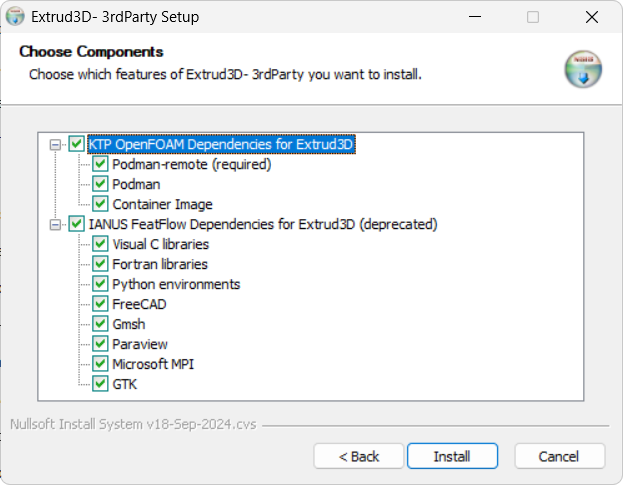
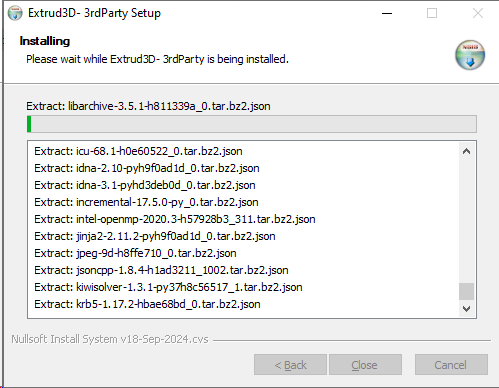
During the installation, the selected components are installed one after another. When Podman is installed, a separate installation wizard may open.
KTP OpenFOAM Dependencies for Extrud3D
The KTP OpenFOAM Dependencies for Extrud3D installer installs the Podman components required to use OpenFOAM on Windows.
During the installation, Podman 6.1.0 is installed. Windows Subsystem for Linux (WSLv2) is used as the virtualization environment.
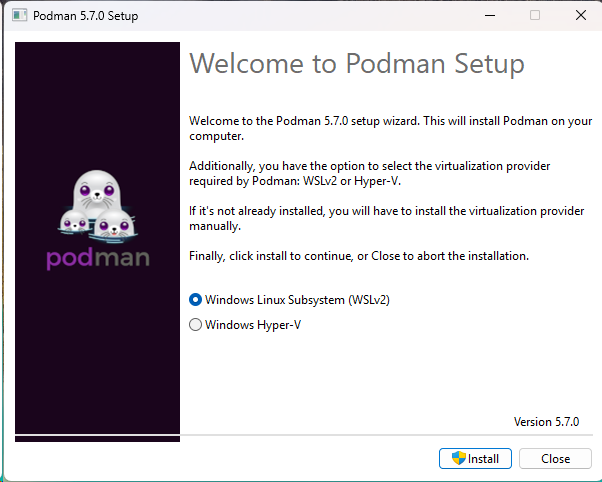
Install Podman
In the Podman 6.1.0 Setup window, select the following virtualization provider:
- Windows Linux Subsystem (WSLv2)
Do not select Windows Hyper-V.
Then click Install to start the installation.
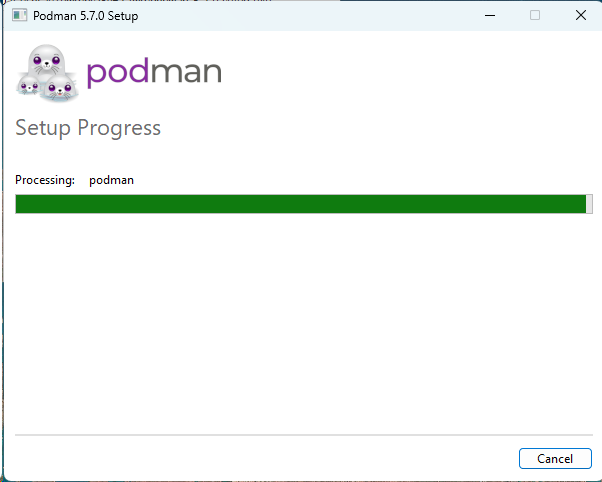
Installation Progress
Podman is now installed automatically. No further user input is required during this process.
Wait until the installation has completed.
Complete the Podman Installation
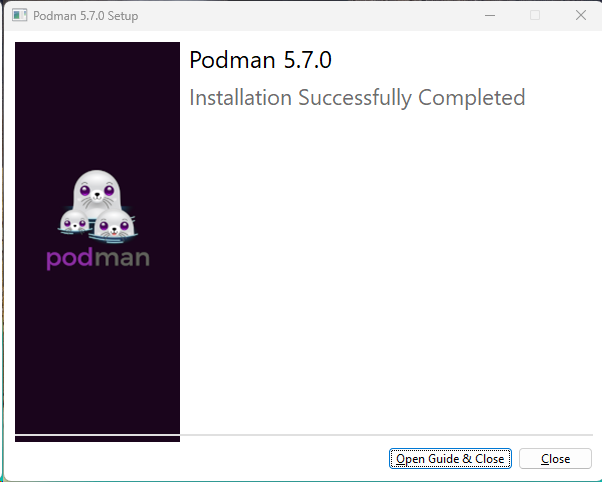
After successful installation, the following message is displayed:
Installation Successfully Completed
Close the Podman setup by clicking Close.
Alternatively, you can click Open Guide & Close to open the Podman documentation before closing the installer. This is not required for installing the KTP OpenFOAM Dependencies.
Complete the KTP OpenFOAM Dependencies Setup
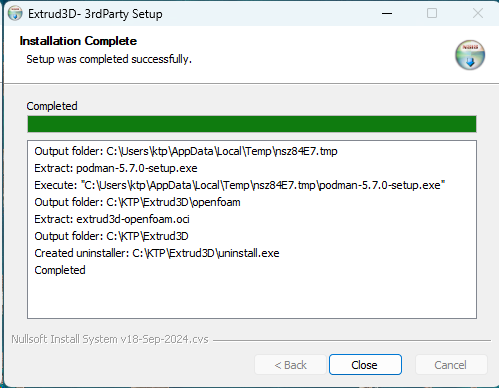
You are then returned to the Extrud3D - 3rdParty Setup installation window.
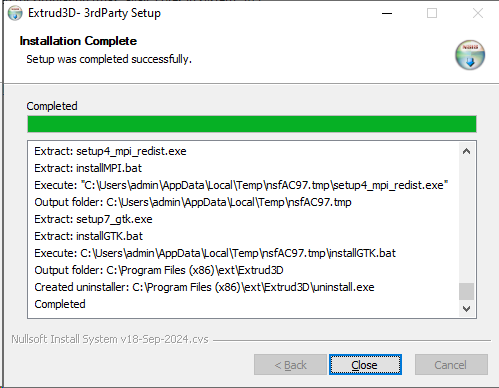
After successful completion, Completed is displayed in the installation log.
Close the installer by clicking Close.
IANUS FeatFlow Dependencies for Extrud3D (deprecated)
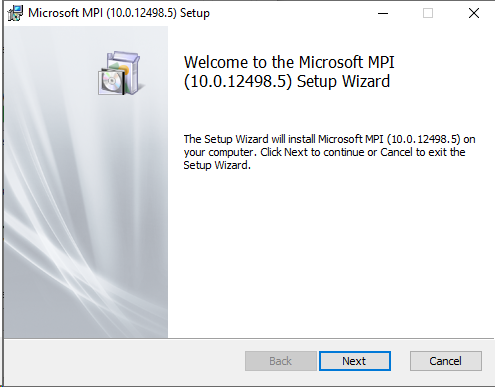
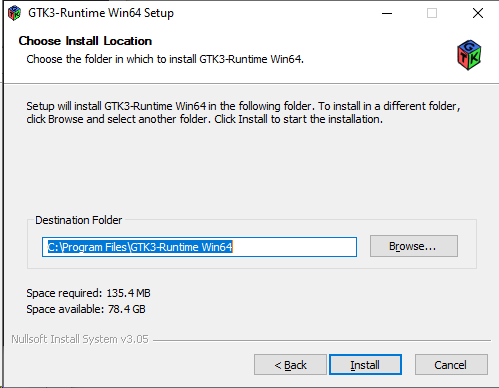
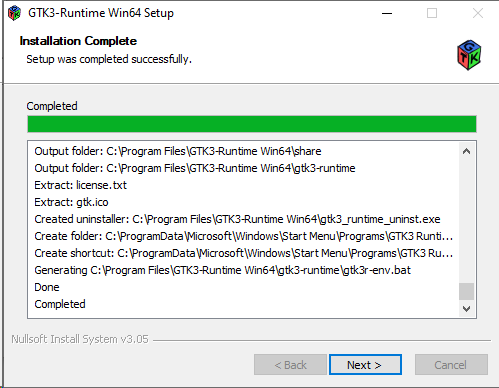
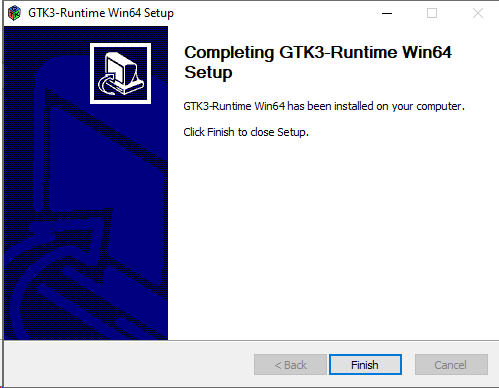
With the exception of GTK and MPI, all applications are installed in the background.
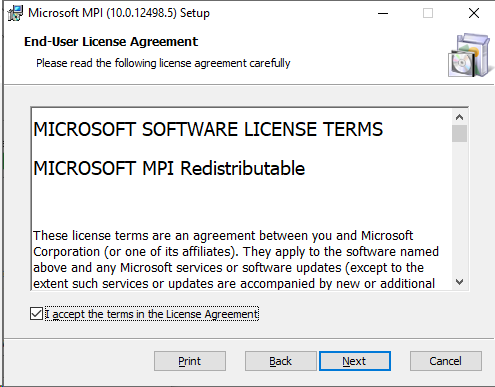
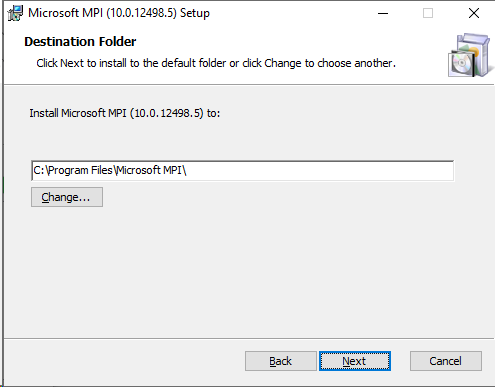
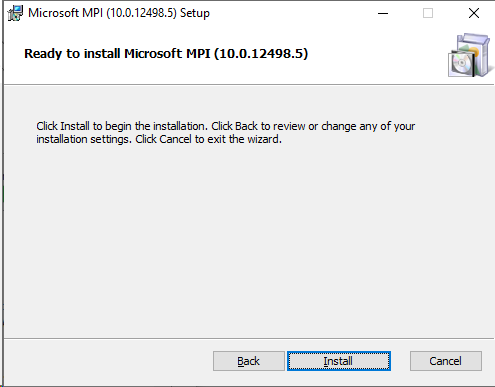
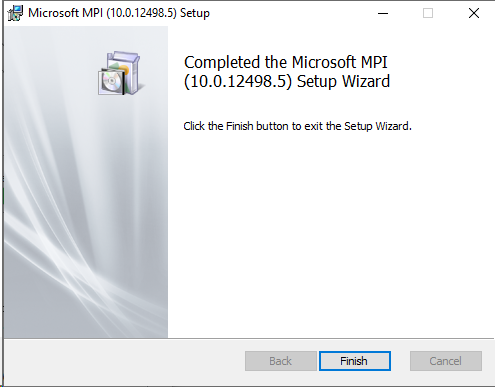
Microsoft MPI
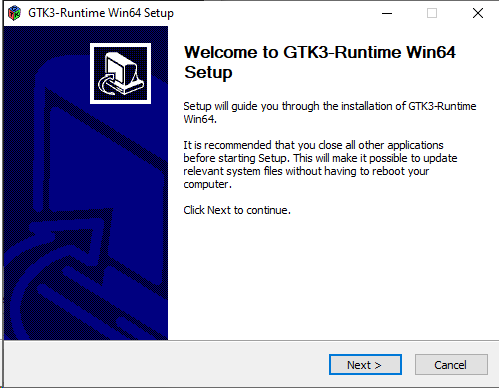
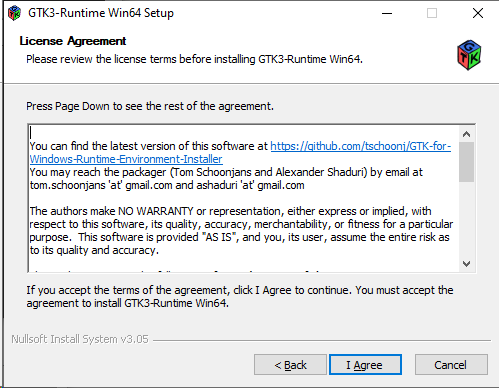
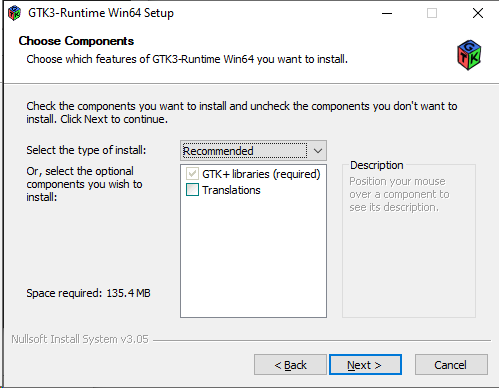
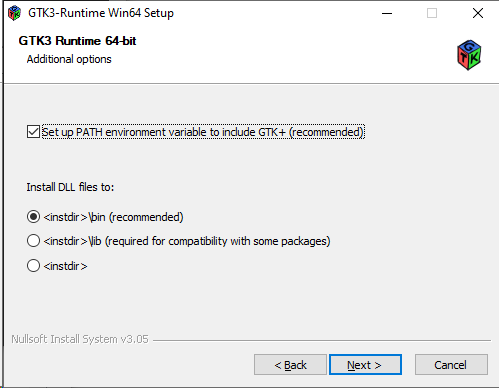
GTK3
Cleanup Setup
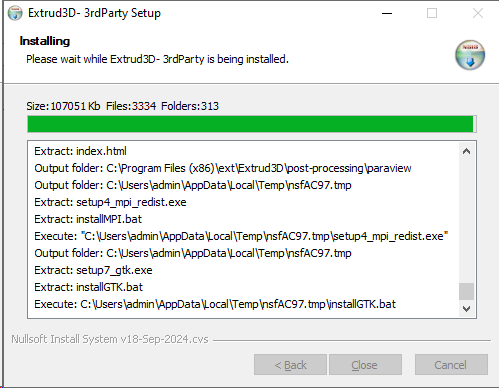
Important: This process takes several minutes. Please wait until it has completed.
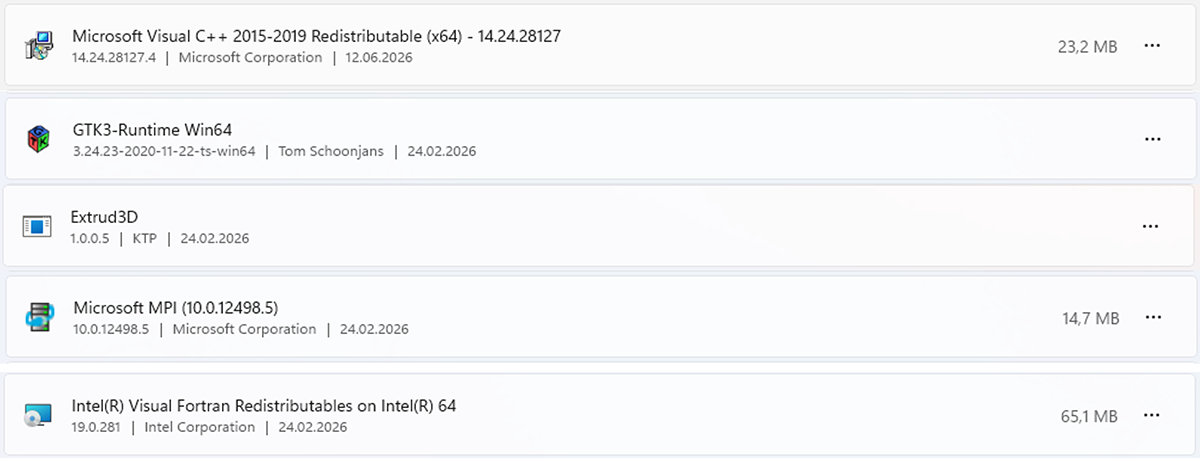
After the installation, the following applications should be installed.
The system must then be restarted.