Measuring data manager
Firstly, a new measurement data sheet must be created. The measurement data manager is opened by selecting the New measurement data sheet item under Experimental data or via the corresponding icon in the toolbar.
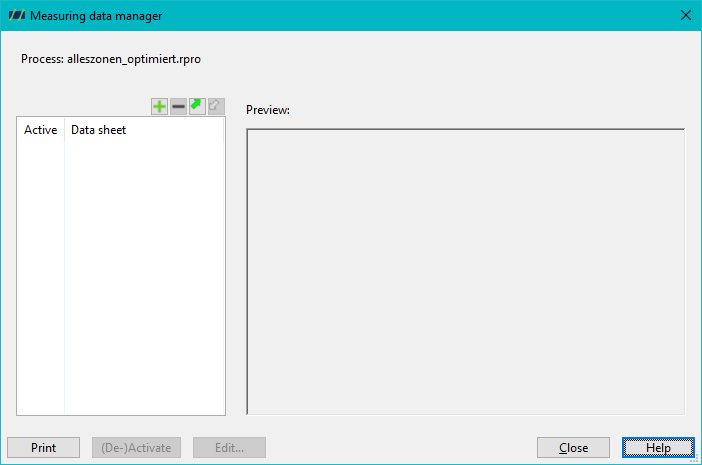
In the Measurement Data Manager window that opens, new measurement data sheets can be created, existing ones can be loaded, edited, printed or deleted and measurement data can be imported from Microsoft Excel. Clicking on the button opens a new measurement data sheet.
Edit a measurement data sheet
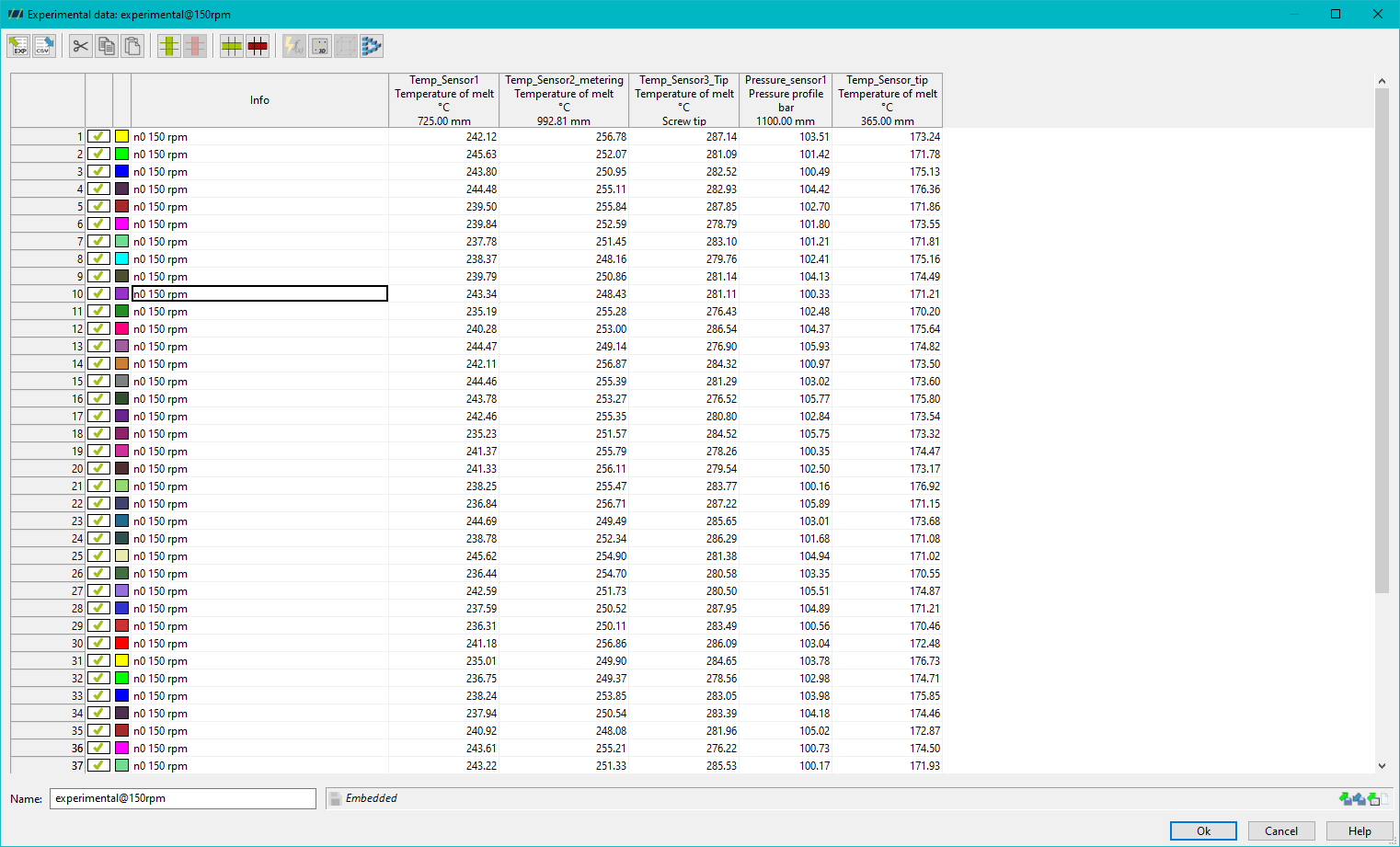
A row in the new measurement data sheet represents a measurement series, i.e. the experimental results of a measurement, and a column represents a measuring point of the process.
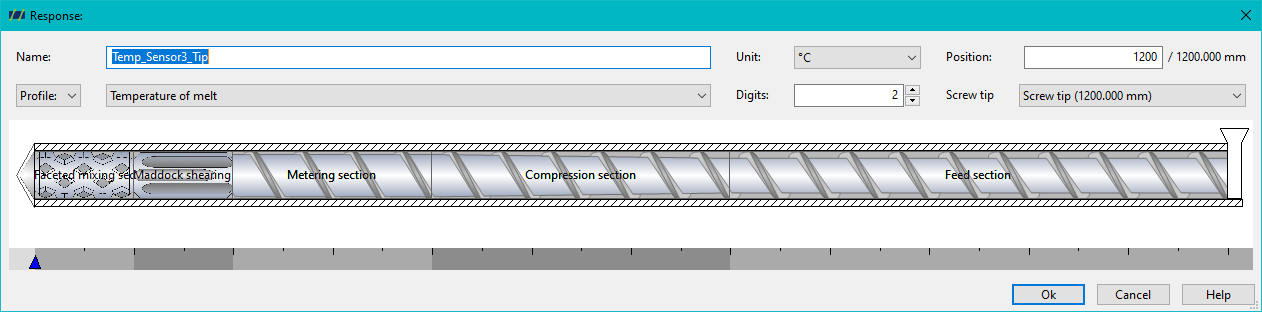
The Edit measuring point window, in which you can create new measuring points, is opened either with the corresponding icon or via Edit > Insert measuring point. To define a new measuring point, the name, the type (various options such as pressure and mass temperature are available), the unit, the position and the decimal places to be displayed must be entered in this dialogue. After entering the required data, confirm with OK.
A new measurement series is also inserted by clicking on the corresponding icon or via Edit > Insert measurement series. By ticking the box to the right of the respective measurement series number, you can select whether the corresponding measurement series should be displayed. The colour selection for a measurement series can be made by clicking in the corresponding box (also to the right of the measurement series number).
The experimental data can now be entered directly in the table and saved via the disc icon in the toolbar or via File > Save as… can be saved.\
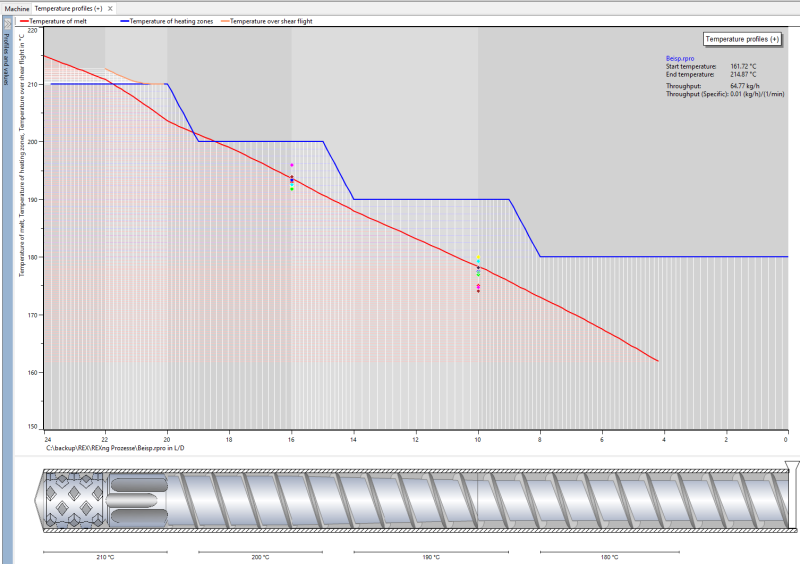
In the results graph, the measurement series are displayed as diamonds in the diagram and the measurement points are marked by dark green arrows directly below the screw and barrel configuration.
Loading measurement data sheets
A measurement data sheet is loaded via Test data > Load measurement data sheet or by selecting the button Load in the measurement data manager.
Importing measurement data sheets
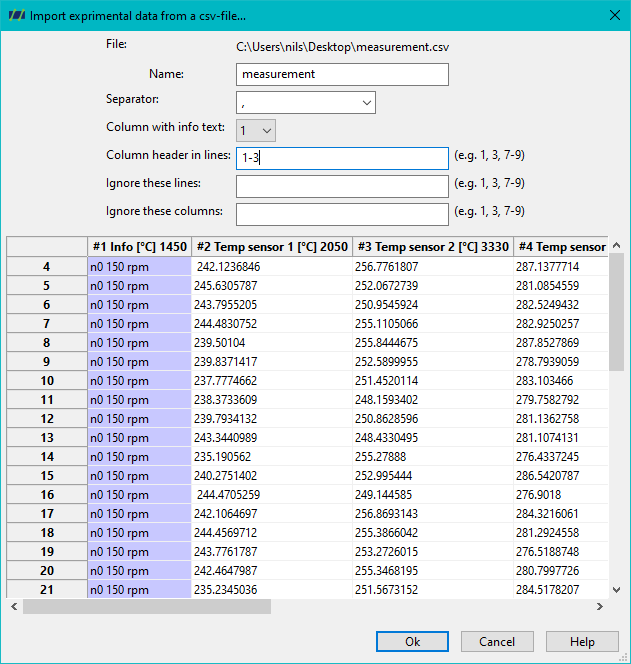
Measurement data can be imported from Excel using the Import button. It should only be noted that the file to be imported must first be converted into a csv file in Excel via Save as, i.e. the file type must be CSV (delimiter separated) (*.csv)
has been selected.
Deleting measurement data sheets
Measurement data sheets that should no longer appear in the list of the measurement data manager for the currently active process can be deleted in the measurement data manager. To do this, select the measurement data sheet to be deleted in the list on the left and then click on the Delete button.
Activating measurement data sheets
A measurement data sheet is also activated in the measurement data manager. To do this, select the corresponding measurement data sheet in the list on the left and click on Activate measurement data sheet.
Printing measurement data sheets
To print a measurement data sheet, select the data sheet to be printed in the list on the left in the measurement data manager and click on the Print button…
Using measurement data sheets in REX
The respective columns in the measurement data sheets can be assigned to specific curves. If the measurement data sheet is activated and the corresponding diagram is opened, all values entered in the measurement data sheet that have been assigned to the opened diagram are displayed as measurement points.
The following illustration shows an example of a temperature curve. The measurement data sheet contains 9 measured temperatures for 2 positions: