Dies ist eine alte Version des Dokuments!
Variation module
Based on an existing process, associated control variables can be changed (quickly and easily) and desired target variables can be calculated. Each modification results in a experiment from which an independent process can be generated if required.
The experimental plan and the associated experiments are created in the form of a variation (.var file) and assigned to the basic process.
Creating a new variation/opening an existing variation
In the first step, a basic process, i.e. a process already created in REX / PSI, is selected.
If variations already exist for the selected process, these can be opened either directly via the file explorer or via the variation manager.
If a new variation is to be created, either the menu or the variation manager can be used.
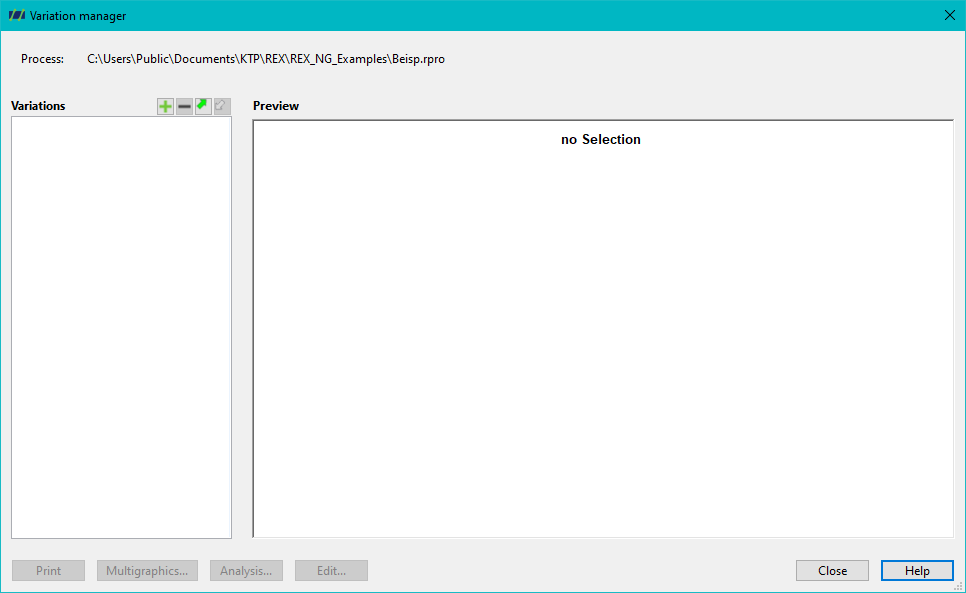
Variation manager
The variation manager can be activated in the main dialogue of REX /PSI via
- the Vary process button
- the menu
- double-click on Variations in the Project data window
window.
The variation manager can be used to manage the variations associated with a process, i.e. to create, open and delete them.
If variations have already been created for the selected process, these are listed in the Variations window. After a simple click on the name of the variation, the associated details are displayed in the Preview window. In addition, the multigraphic can be called up directly for an existing variation (Multigraphic… button) or the test plan can be printed (Print button).
If there are no variations for the process, both windows are empty.
Create variation
Click on the button with the green plus > Enter the name of the variation > Click on the Open button
Open variation
Double-click on the name of the variation in the Variations window or single-click on the name of the variation in the Variations window > Click on the Edit button
Remove variation
Single-click on the name of the variation in the Variations window >Click on the button with the red minus sign
Variation module
The main dialogue of the variation module can be divided into three areas:
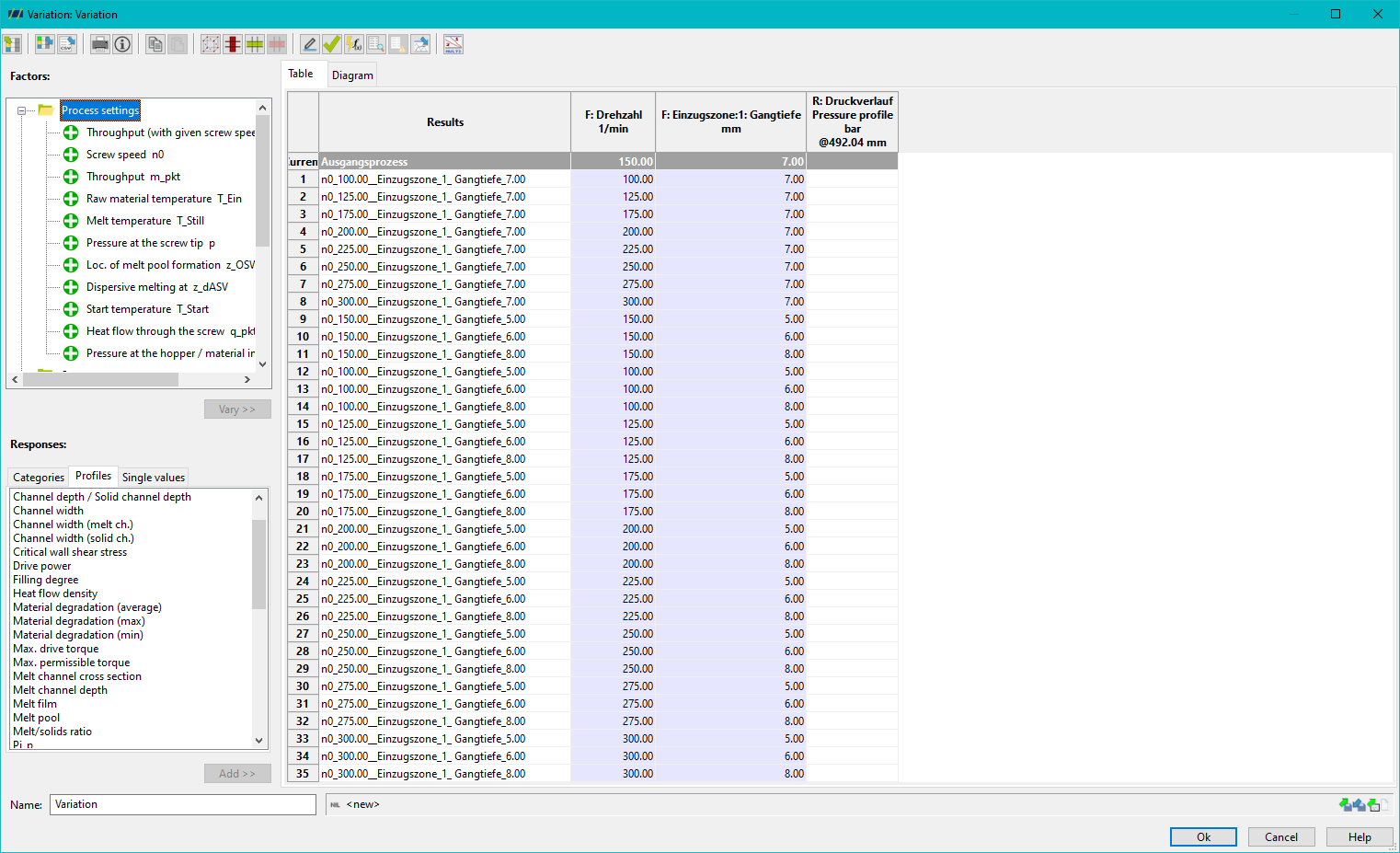
- Dialogue window for selecting control and target variables
- Experiment plan
- Button bar for selecting actions
1. Dialogue window for selecting control and target variables
Before a control variable or a target variable can be configured, it must be selected via the file explorer Add new control variable or Add new target variable
must be selected.
Each of the control variables is categorised as a process parameter, machine configuration or component.
The target variables can be selected from three tabs. The sorted tab lists all standard target variables grouped by category. All target values, including those defined by the user or rarely used, can be found in an alphabetically sorted list under the ‘History’ tab.
Furthermore, all REX / PSI curves and individual values can also be selected.
Opening a folder
Double-click on the name of the folder
Opening the configuration dialog of a control variable/target variable
Double-click on the control value/target value or single-click on the control value/target value > click on the ‘Vary’ button
or ‘Add’ button.
2. Experiment plan
Each line of the test plan represents one of the tests created. The first line shows the values of the basic process. The individual columns show the
selected control and target variables are listed in the individual columns.
Target variables already integrated into the test plan can be configured by double-clicking on the corresponding column designation.
3. Button bar
- Import from measurement data sheet
- Export as measurement data sheet
- Export as CSV file
- Print variation
- Information on the variation process
- Copy to clipboard
- Paste as new variation line
- Open the D.o.E. wizard
- Delete column (control/target value)
- Duplicate experiment / simulation
- Delete experiment / simulation
- Rename experiment / simulation
- Check all simulations
- Calculate all simulations
- Short report
- Show calculation log of the selected simulation
- Save selected experiment / simulation as a process
- Open multigraph
Delete column
Delete a column or a control or target variable from the test plan.
Click in any field of the column > Click on the ‘Delete column’ button.
Duplicate experiment
Duplicate an existing experiment or line in the experiment plan.
Click in any field of the experiment/row > Click on the ‘Duplicate experiment’ button.
Delete experiment
Delete an experiment or a line of the experiment plan.
Click in any field of the experiment/row > Click on the ‘Delete experiment’ button
Check all trials
The test plan is checked for the existence of duplicate or non-calculable tests. If these exist, they can then be deleted by the system. Using the check can significantly shorten the calculation time if necessary.
Calculate all
The calculation of the tests is started.
Create process for selected trial
An independent process can be created from each of the tests shown in the test plan. The individual process components are saved in separate files for this purpose.
A trial is selected by clicking on the corresponding line in the trial plan. The dialogue for saving the individual process components is opened by clicking on the button Create process for selected trial.